

Create a virtual office membership
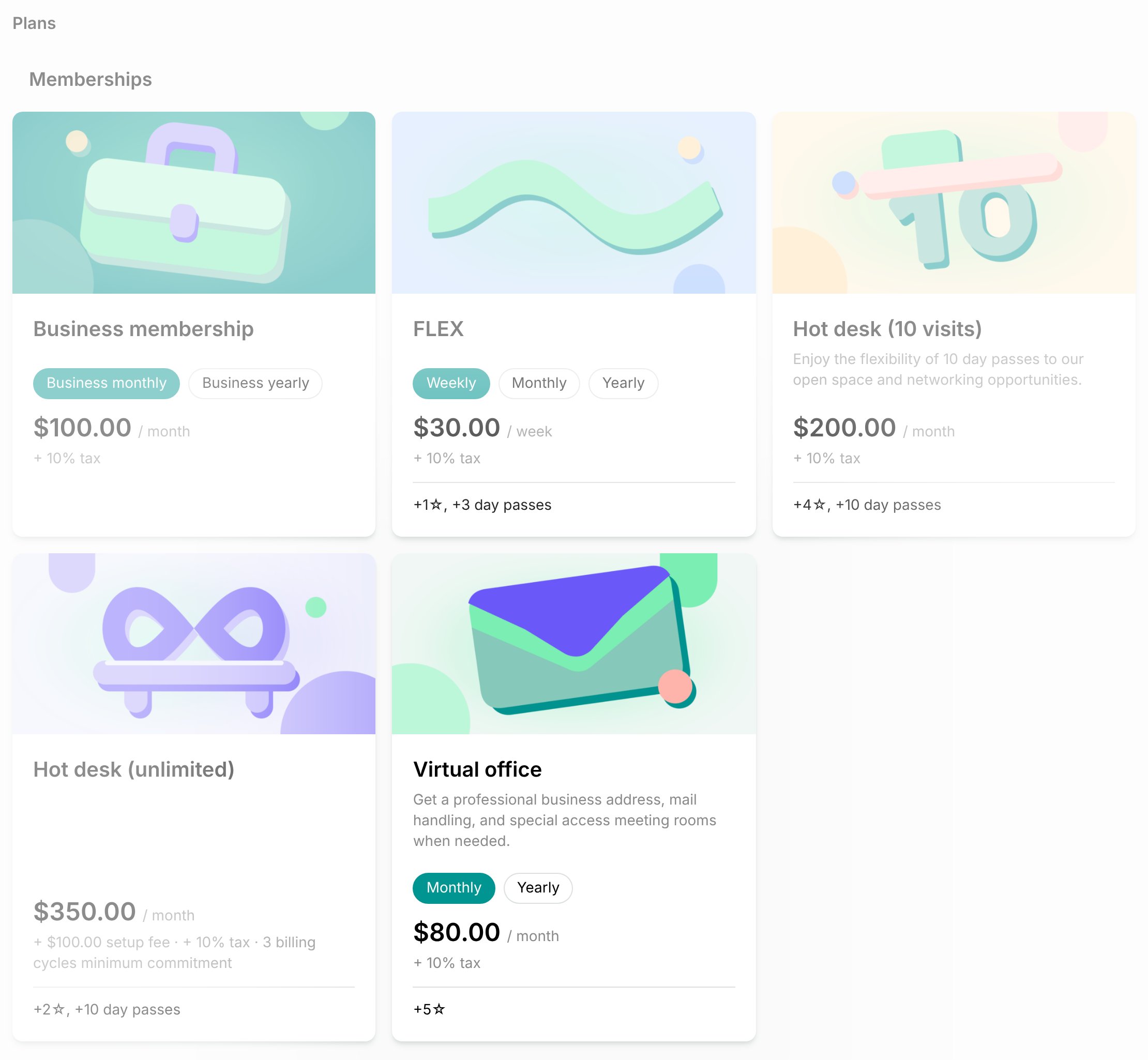
Automate your virtual office subscriptions and invoicing by creating a dedicated membership:- Go to Catalog > Memberships and click Create membership.
- Add a cover photo, and enter a Name, such as Virtual office, and a Description of the included services, such as a business address and mail handling.
- Under Plans, click Add plan, enter a Name, such as Monthly, and set its Cycle and Price.
- To include meeting room time, give the plan Expiring credits for each cycle, or Granted coupons for room bookings.
- See all plan settings, such as a setup fee or a minimum commitment.
- Under Sign-up, keep Sign-up on, choose the Type, Immediate or Request, and click Save.
- With Immediate, you can select your virtual office agreement under Contract, so customers sign it online at checkout before their subscription starts.
- With Request, issue the agreement for eSignature after you approve the request.
- Repeat steps 3 and 4 for each billing option you offer, such as a Yearly plan.
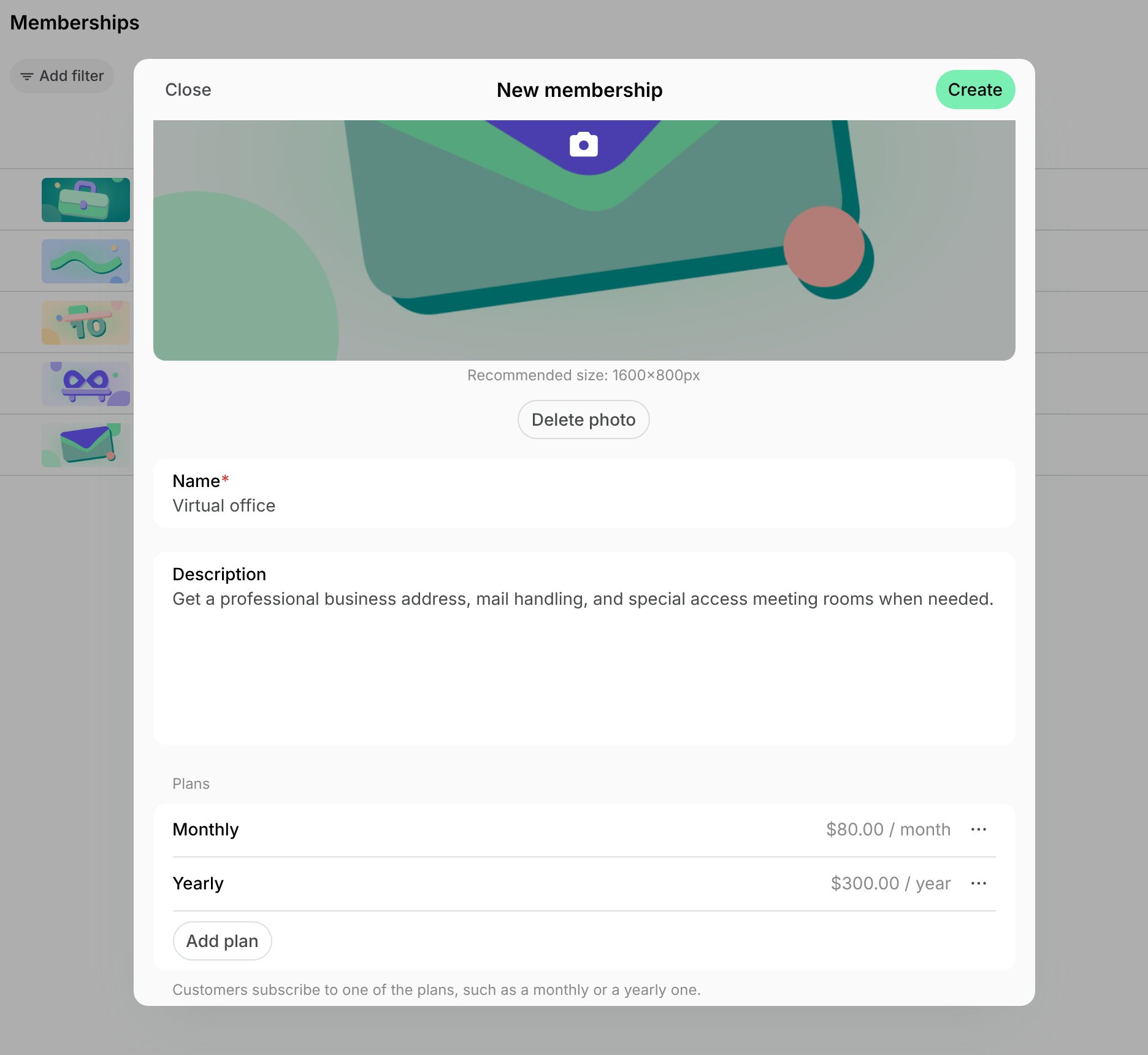
- Click Create.
Verify customers before they start
Before a customer can use your business address, you may need to check who they are. Set the plans’ sign-up Type to Request, and ask for the documents you need, such as a photo ID and a proof of address, in the request’s Activities section. The customer replies with the files attached, and you approve the request once they’re in order.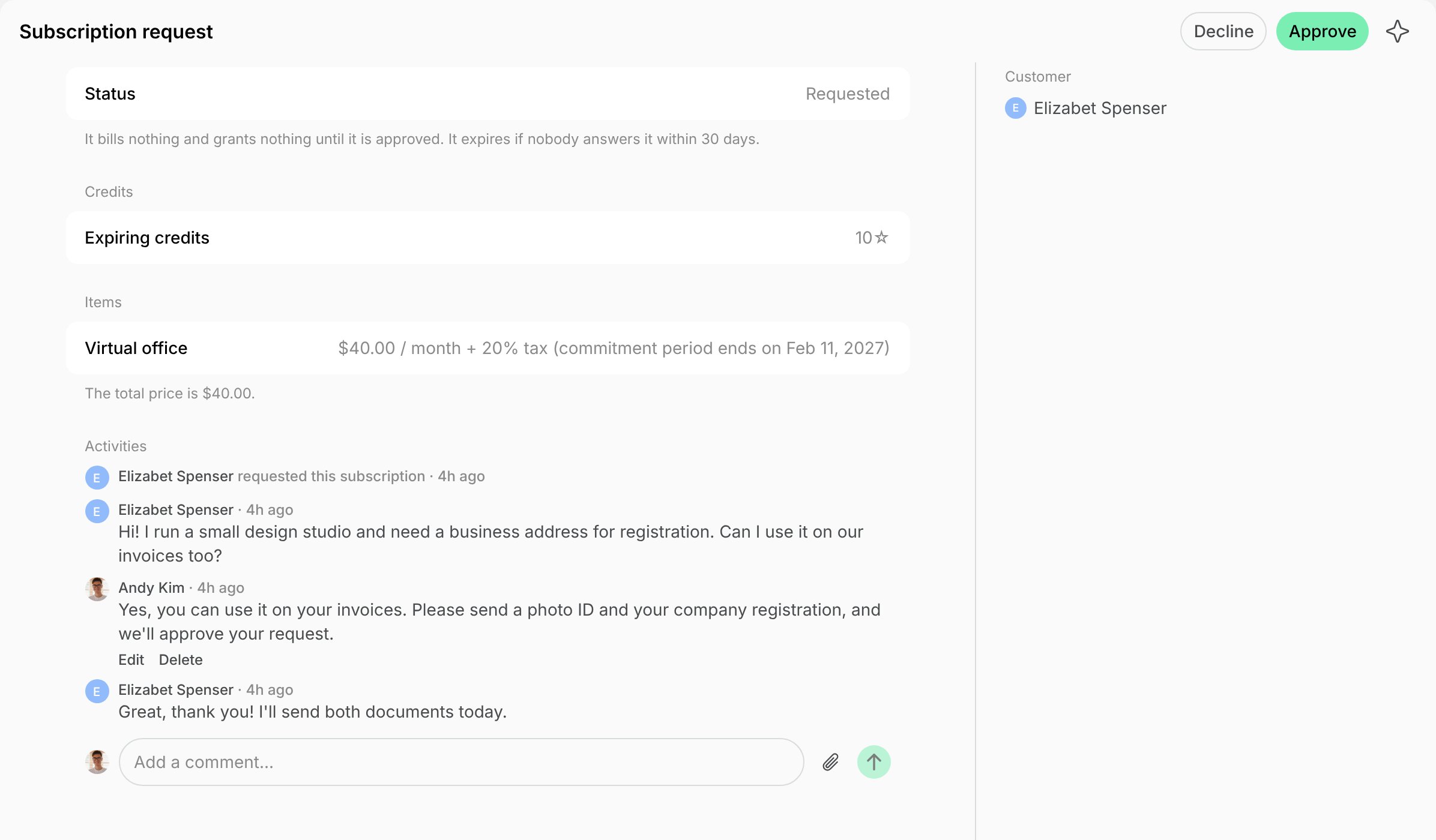
Handle deliveries
When mail or a package arrives for a virtual office member, add it as a delivery on the Front desk > Deliveries page, with a photo of the envelope or package label so the member knows exactly what has arrived.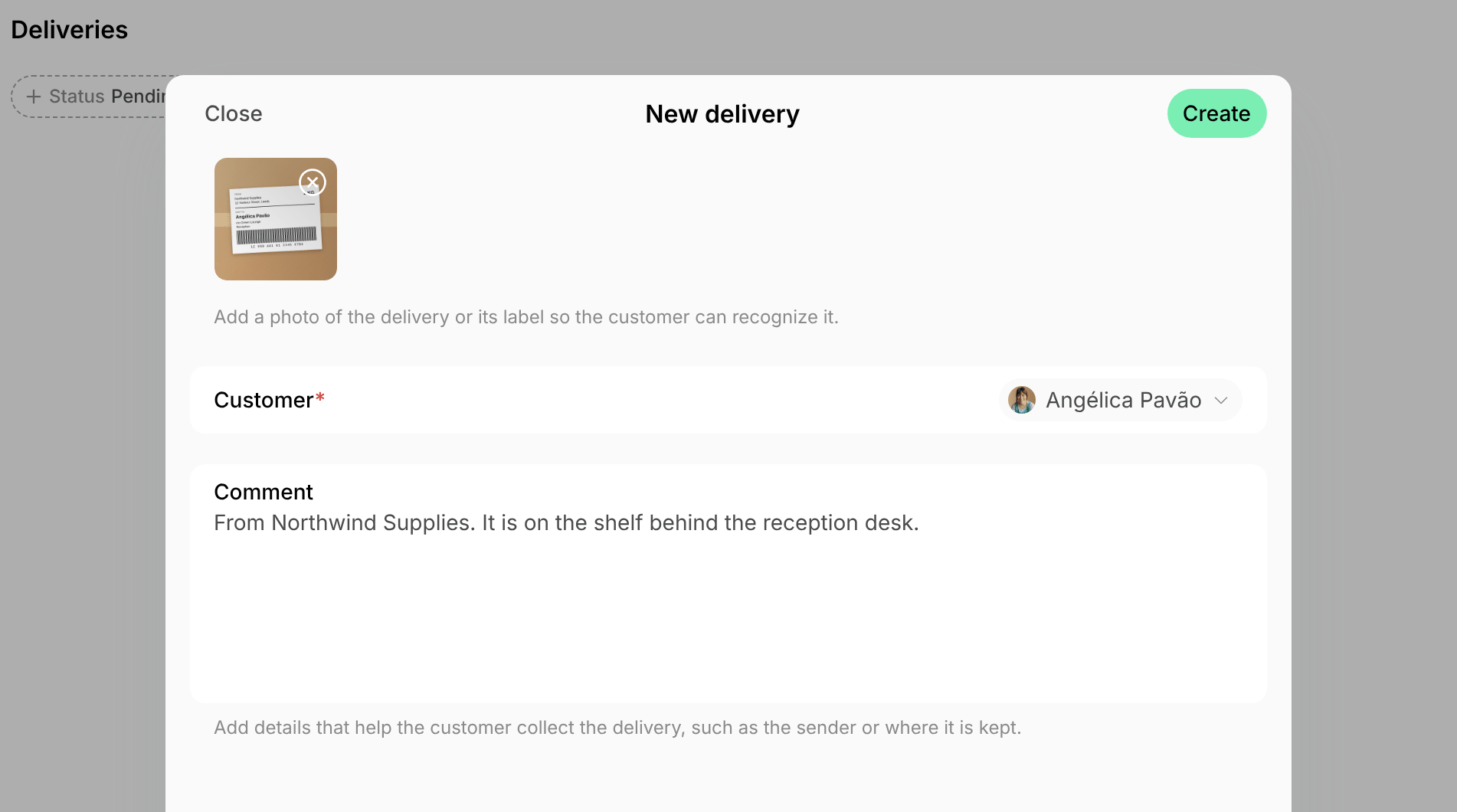
FAQs
Do virtual office members get door access?
Do virtual office members get door access?
Only if you select an access group in the membership’s Access section, which appears once you connect an access control
integration. Without one, the subscription opens no doors. Members still get access for their bookings of
resources that have an access group, such as a meeting room, from 30 minutes before the booking until 30 minutes after it.