

Prepare before the first day
Give access to the door, Wi-Fi, and printer
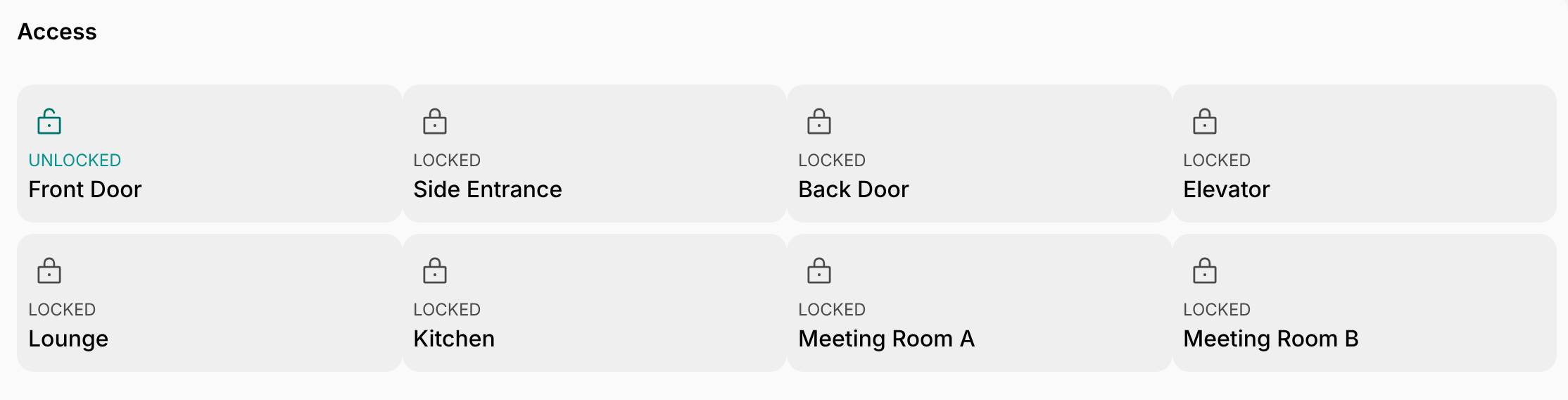
A new member may arrive before your team does, then wait at the door or ask a stranger for the Wi-Fi password.- Connect an access control integration, such as Kisi or Salto KS. Members get access to your doors when their subscription starts, and lose it when the subscription ends.
- With Kisi or Brivo, members unlock doors on the Access page of the member portal.
- With Salto KS, members tap Get digital key on the Home page of the member mobile app.
- Connect the IronWiFi integration to give members Wi-Fi access without a password, based on their subscription.
- Connect ezeep Blue, so members of the memberships you choose get an invitation to print as soon as they subscribe.
Send arrival details with the invitation
A new member may activate their account from the invitation email, and still not know where to go on their first day or how to get in. Customize the text of the member invitation email and add the details members need to know before they arrive.- Click the menu (…) next to your location name > Location settings > Customers.
- Under Custom emails, enable Invitation and enter what the member needs before they arrive, such as:
- The address, which entrance to use, and who to ask for
- How to get in and how to connect to Wi-Fi
- Parking or bike storage
- Links to your guides for everything else
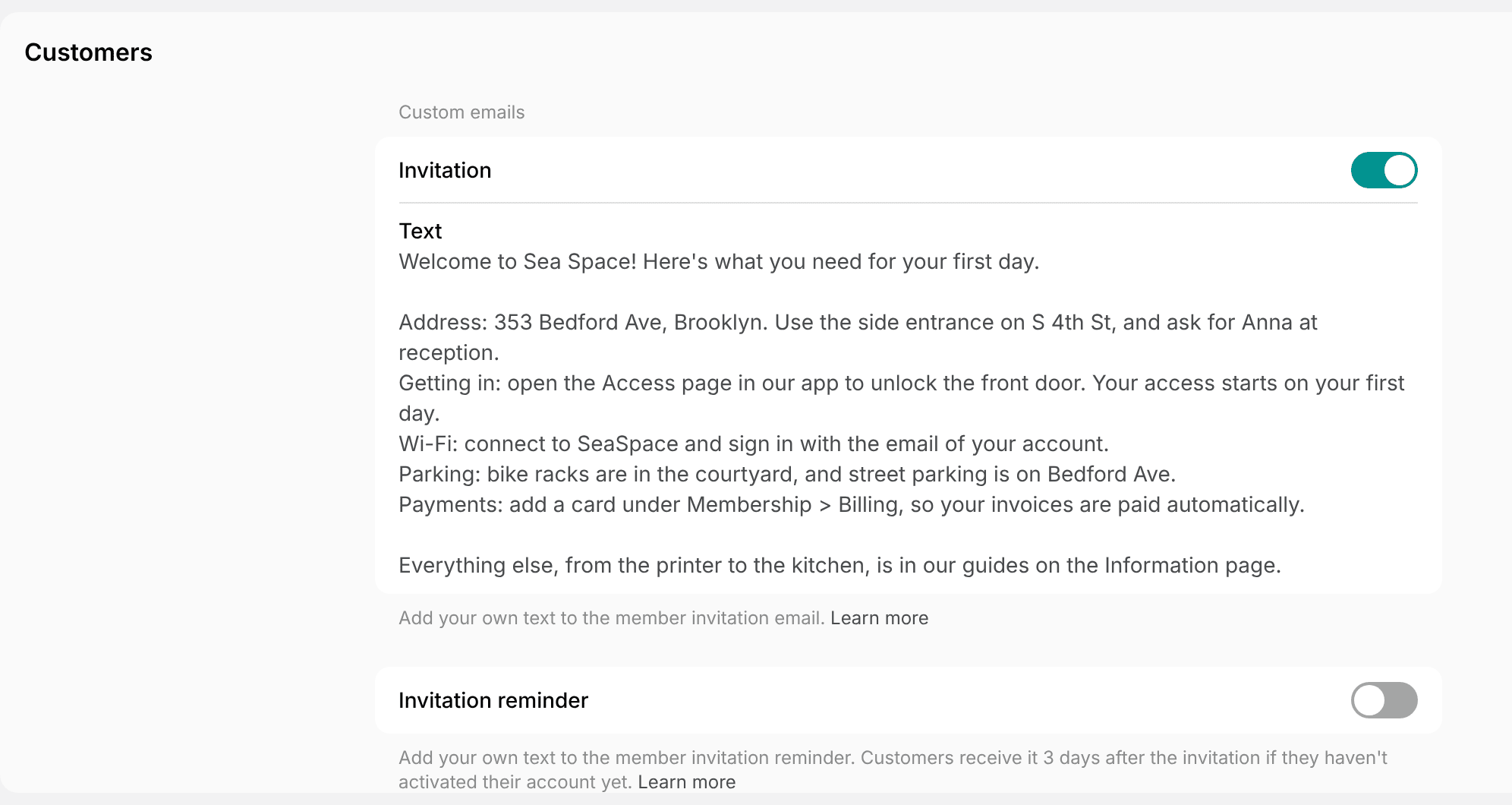
- Enable Invitation reminder and enter the same details. Members who haven’t activated their account get it 3 days after the invitation.
Onboard a company’s team
A company may move ten people in on the same day, and its office manager may end up answering every question about access, bookings, and invoices.- Create the company and its subscription first. Each company member gets the subscription’s access, such as doors and Wi-Fi, as soon as they join.
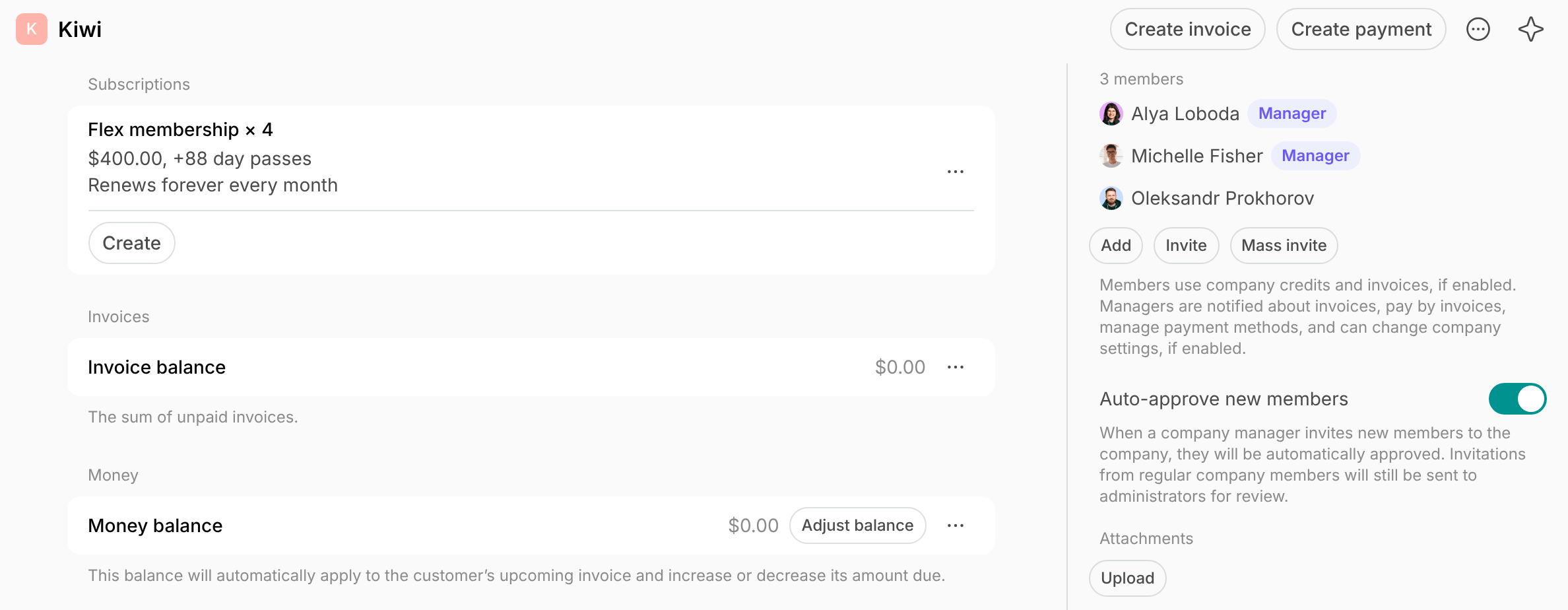
- On the company’s profile, click Mass invite and paste the team’s names and emails.
- Click (…) > Make manager next to the office manager. Company managers pay the company’s invoices, manage its payment methods, decide whether the team can pay with company credits, and book rooms for colleagues.
- Turn on Auto-approve new members under the company’s members, so colleagues the company manager invites from the member portal join right away.
- Create a group chat for the team, so you can share updates with everyone at once.
Collect documents from new members
A new member may need to send documents before they can start, such as an ID and a proof of address for a virtual office, a company registration for an office, or a student card for a student rate.- In each membership or rental plan that needs documents, set the sign-up Type to Request, so customers request the membership or the office and you approve each request.
- When a request comes in, write in its Activities section which documents you need. The customer replies and attaches the files from their subscriptions in the member portal.
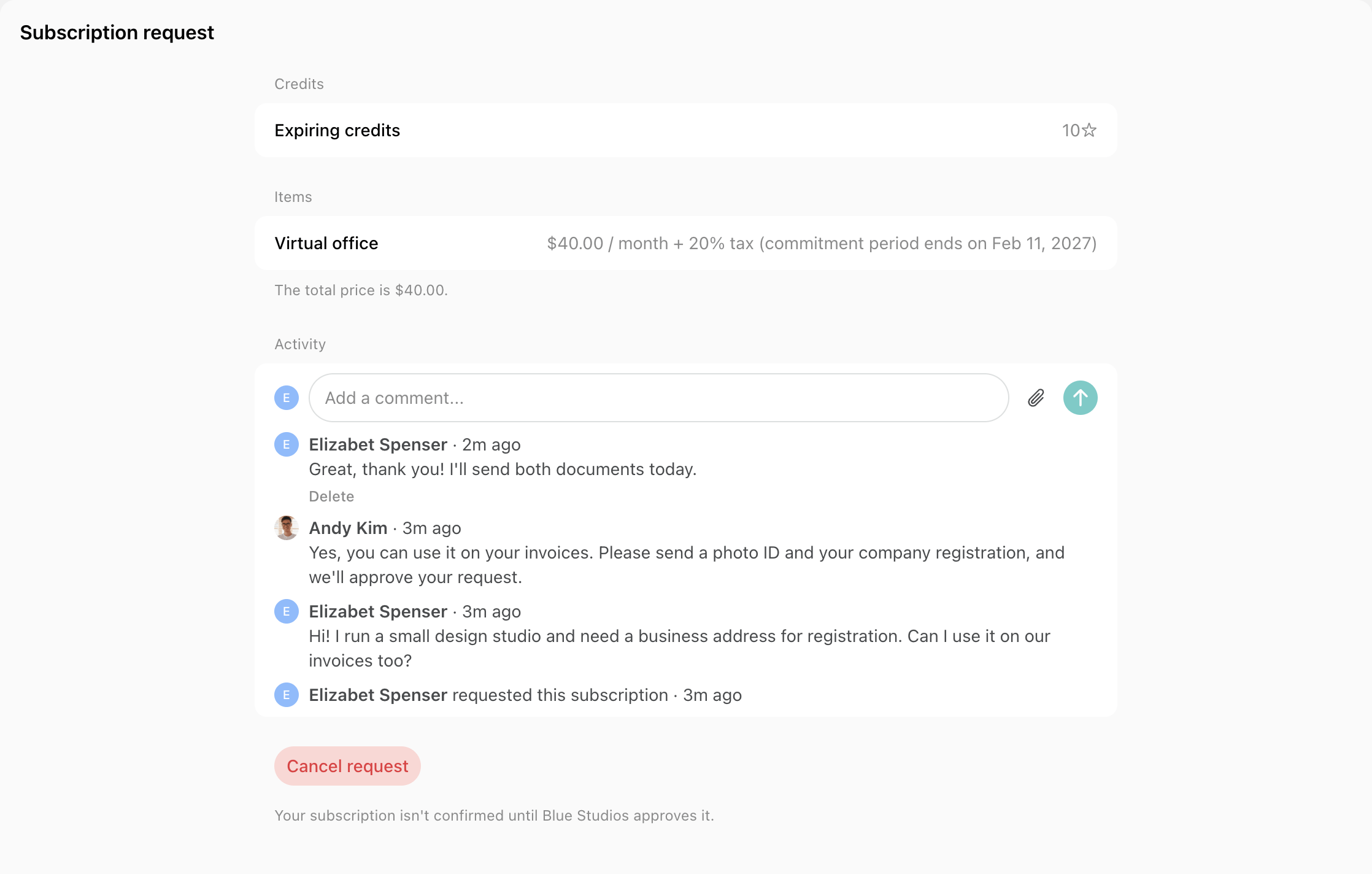
- Once the documents are in order, click Approve and confirm. The subscription is created, and the conversation with the documents stays in its Activities section.
Help new members settle in
Answer first-week questions with guides
New members may ask the same things in their first week, such as how to use the printer, where to take calls, or how to bring a guest, and each answer takes your team’s time.- Create a guide for each common topic, such as getting in, Wi-Fi and printing, phone booths, the kitchen, and guests. Members find guides on the Information and Support pages and can search them.
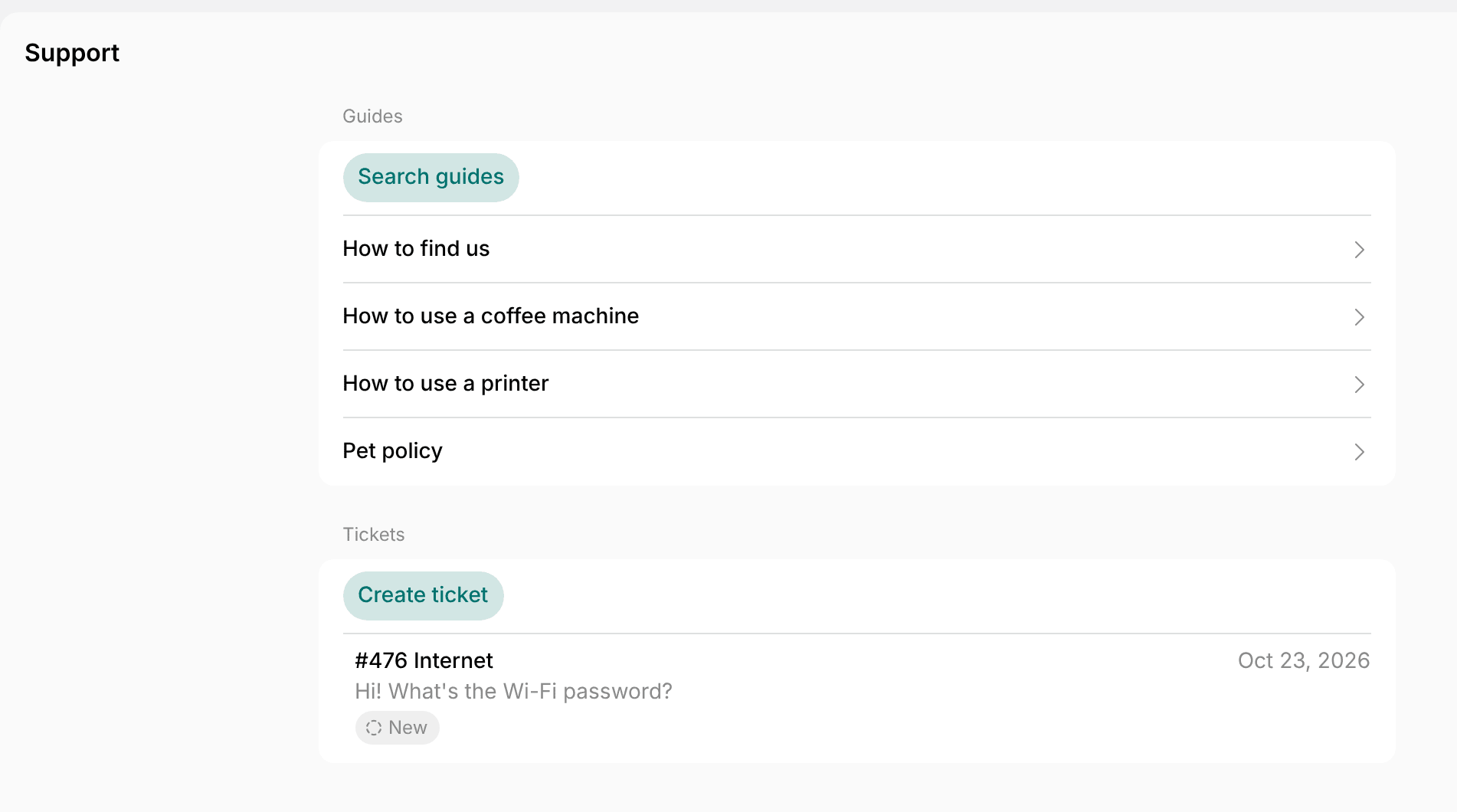
- Set a guide’s visibility to Location members when only members should see it, such as how to get in after hours.
- Turn on the support agent, so it answers members’ tickets on the Support page from your guides, also outside your team’s hours.
- When the same question comes up twice, add the answer to a guide.
Help new members use their membership
A new member may pay for meeting room credits every month and never use them, then decide the membership isn’t worth its price.- On their first day, help them install your member mobile app and book a meeting room together. Members see their credits on the Membership page.
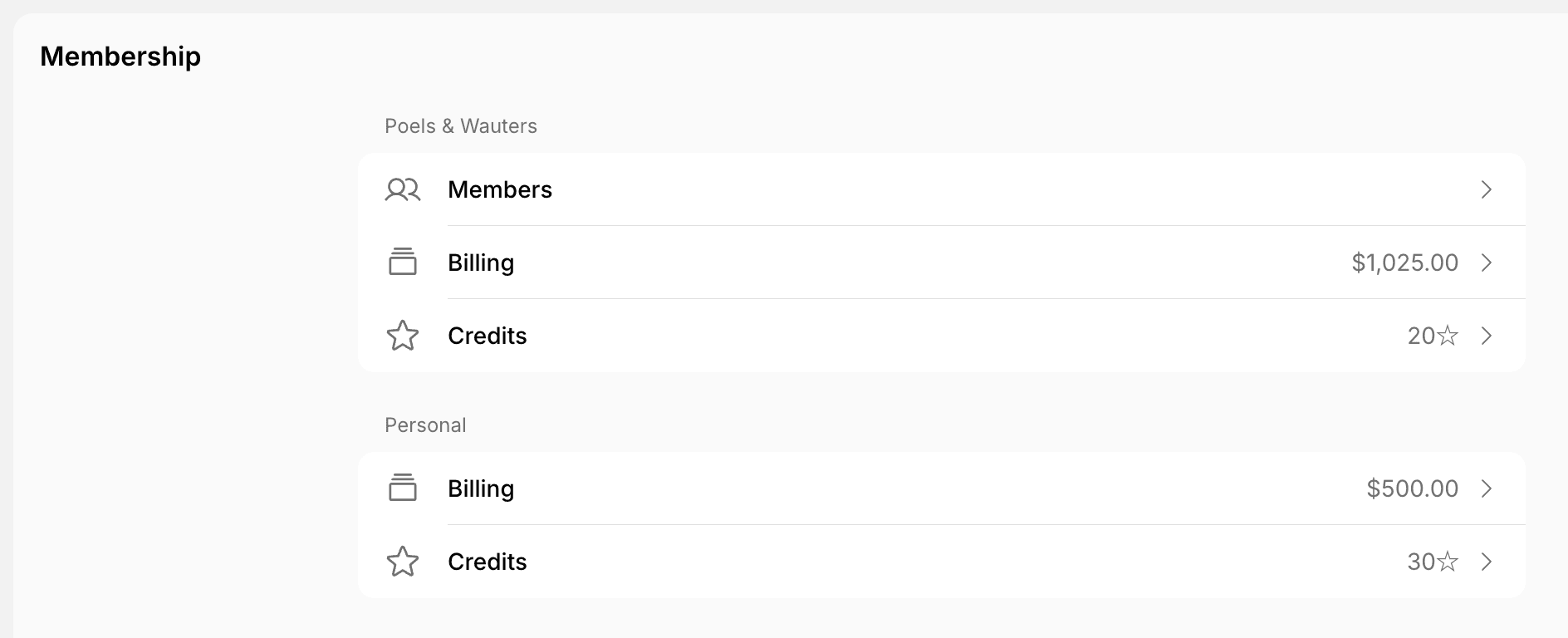
- To give each new member welcome credits to try your rooms, add them in a welcome email agent.
- Offer perks on the Benefits page, such as a partner’s discount, and point new members to the two or three that fit them.
- With several locations, turn on cross-location credits and day passes, so members can try your other locations with what their membership includes.
- To find members who haven’t used their credits, send yourself a report.
Introduce new members to the community
A freelancer may work at your space for weeks without talking to anyone, and a member who knows no one finds it easier to leave.- Introduce the week’s new members in a Feed post, with what each of them does and what they’re looking for. Members of the location get a push notification.

- Introduce each new member to one or two members who do similar work, or who can show them around, in a group chat with the three of them.
- Add new members to group chats for shared interests, such as a running club or a founders’ circle.
- Under Location settings > Customers, set Visibility to Location members, so members can browse each other on the Community page and start a chat. Members appear there with the photo and About text they add to their profile.
- Hold a regular event for new members, such as a monthly breakfast, and add each new member to its attendees. They get the ticket as if they had joined themselves.
Follow up after the first weeks
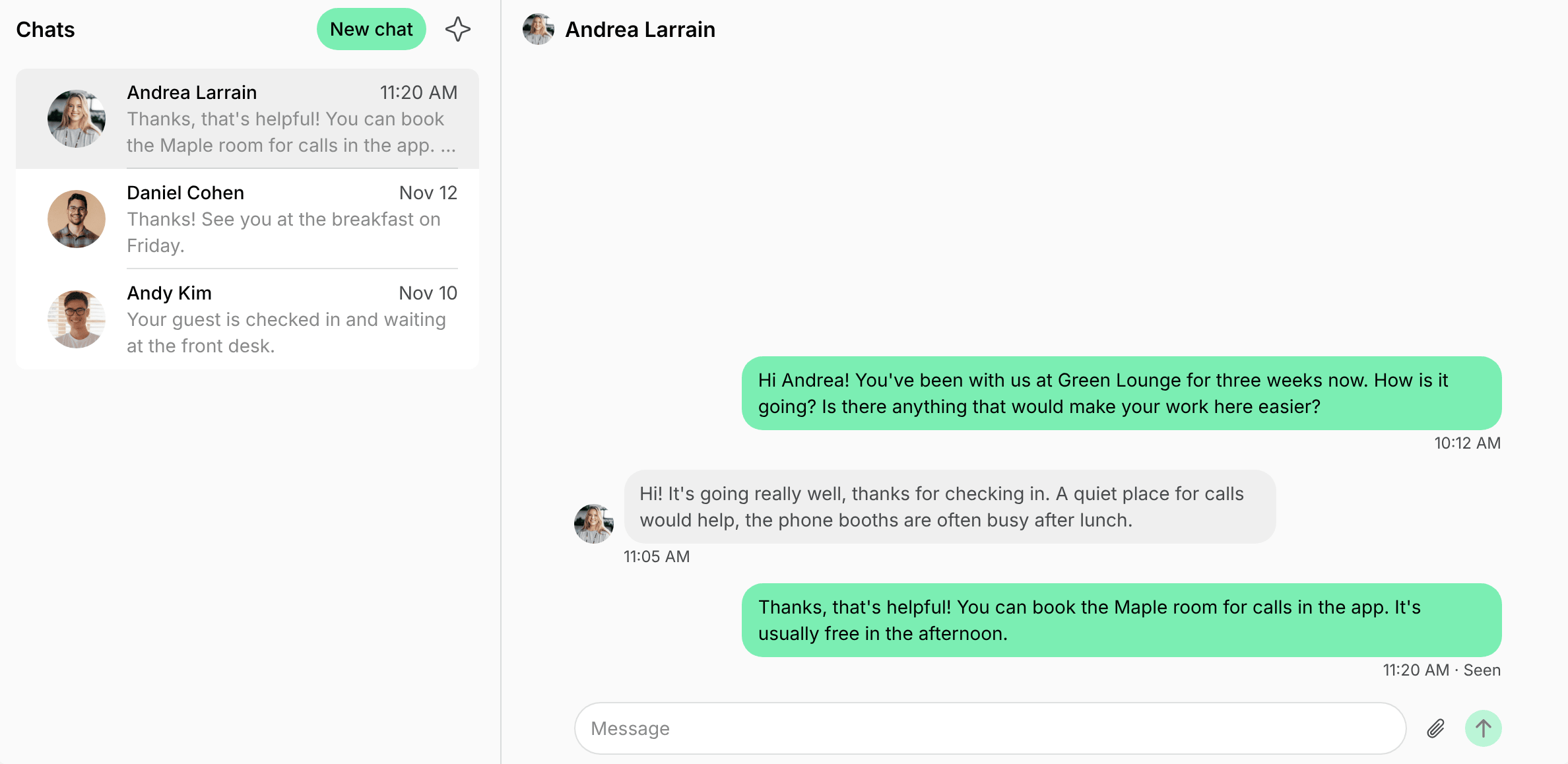
A new member may come less and less after their first two weeks, and you may only learn why when they cancel.- About a week after a member’s first day, check how often they came: go to Front desk > Check-ins and filter by User. If they haven’t come in for a while, send them a message in Chats.
- Owners and super administrators can also see when each user was last active in the member portal or app, under Network settings > Users.
- Around three weeks in, ask every new member whether anything would make their work here easier. To ask each of them automatically, set up the new member check-in agent.
- Around two months in, check whether their plan still fits, such as from the credit transactions on their profile, and offer another membership if it doesn’t.
Best practices
- Spread what you send over the first weeks: arrival details in the invitation, introductions in the first week, and questions after a few weeks.
- Introduce only the new members who agree to it, in a Feed post or a group chat.
- When an agent welcomes members who sign up on their own, give it the same arrival details as your invitation email, so every new member gets the same information.
FAQs
Can I invite a member before their subscription starts?
Can I invite a member before their subscription starts?
Yes. They can activate their account and see everything you show to members right away. Their access to doors and Wi-Fi, and their credits, start with the subscription.
How do I see which new members haven't activated their account?
How do I see which new members haven't activated their account?
Open the member’s profile on the Customers page. Until they activate their account, it shows an Invitation section with Resend invite. Owners and super administrators can also check the Last active column under Network settings > Users, which is empty for users who haven’t signed in.