

Share rooms fairly
Limit the booking duration
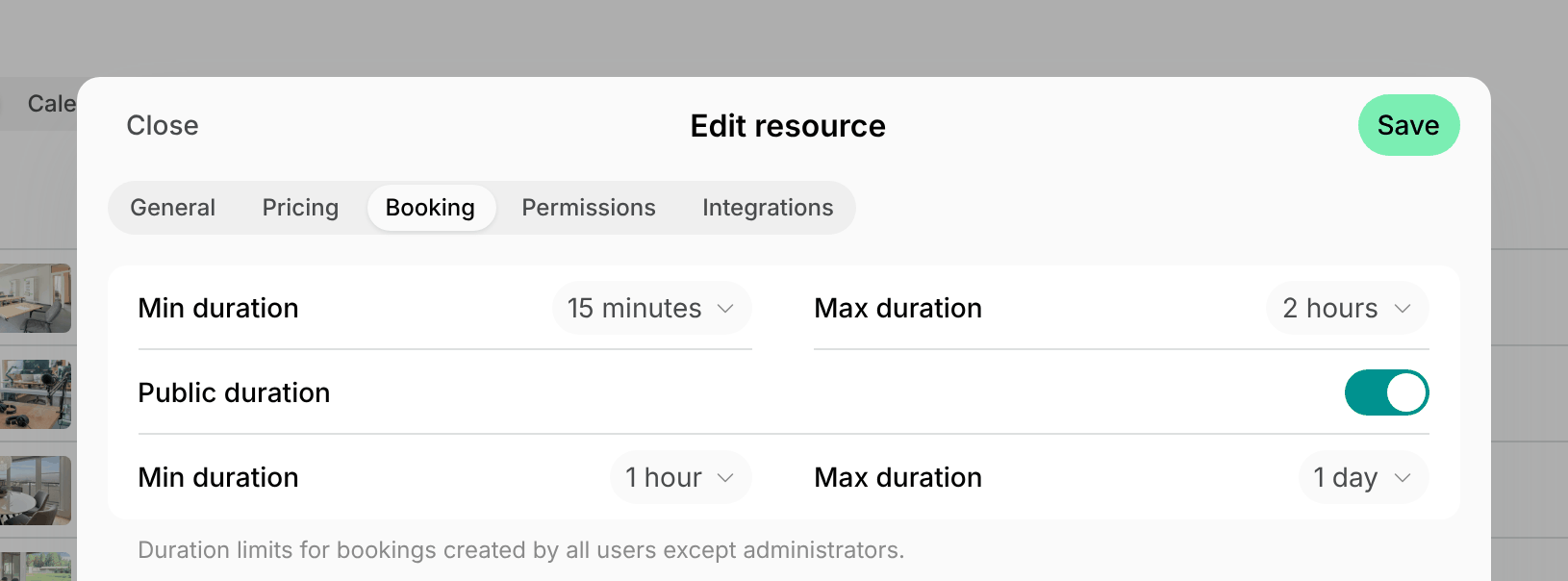
Restrict how long customers can book each room for. For example, let them book a phone booth for as little as 15 minutes, but not hold a meeting room for the whole day.- Go to Resources > Rooms, hover over the room, and click (…) > Edit.
- On the Booking tab, set Min duration and Max duration, such as 15 minutes and 2 hours.
- To set other limits for nonmembers, such as at least 1 hour for bookings from your website, enable Public duration and set its Min duration and Max duration.
Limit how many free bookings a customer can hold
If your phone booths or meeting rooms are free, restrict how many free bookings each customer can have at a time, so a few customers can’t book up all the free slots of the week.- Click the menu (…) next to your location name > Location settings > Resources > Rooms.
- Set Book for free to One active, Two active, or Three active.
- This way, each customer can have up to that many free bookings scheduled at a time, and can book another one only once one of them has ended.
- Each repeat of a recurring booking counts as one booking. For example, with Three active, a customer can book a weekly meeting for three weeks at most.
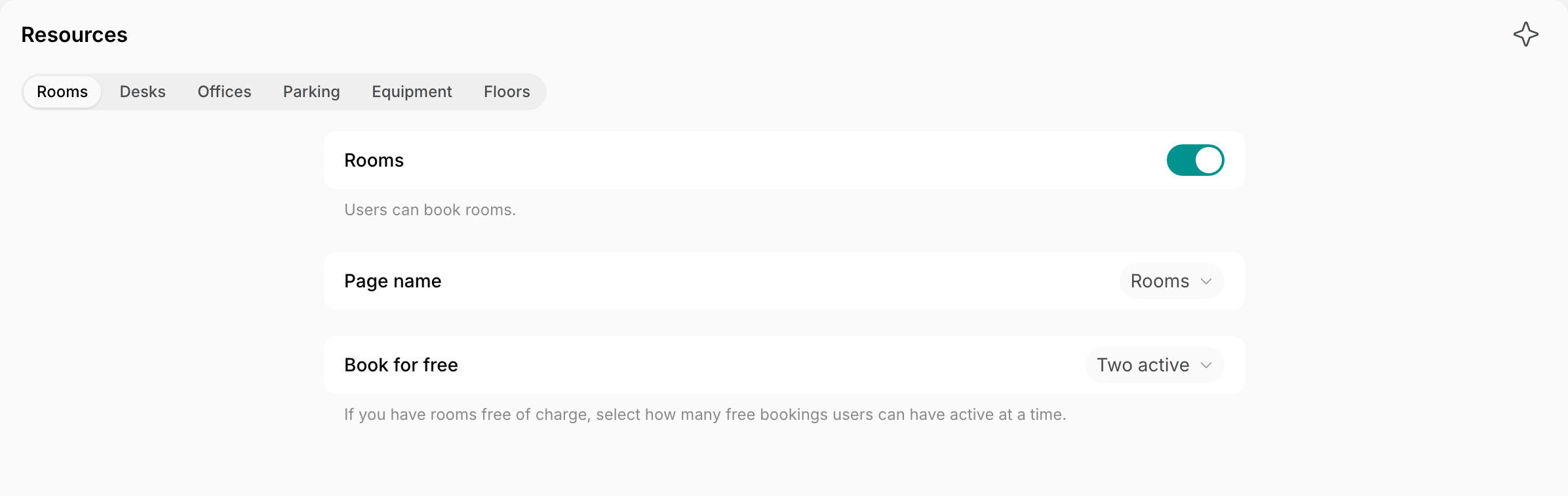
The Book for free limit applies to rooms with the Money, Credits, and Plans switches all off on their Pricing tab.
Limit how far ahead customers book
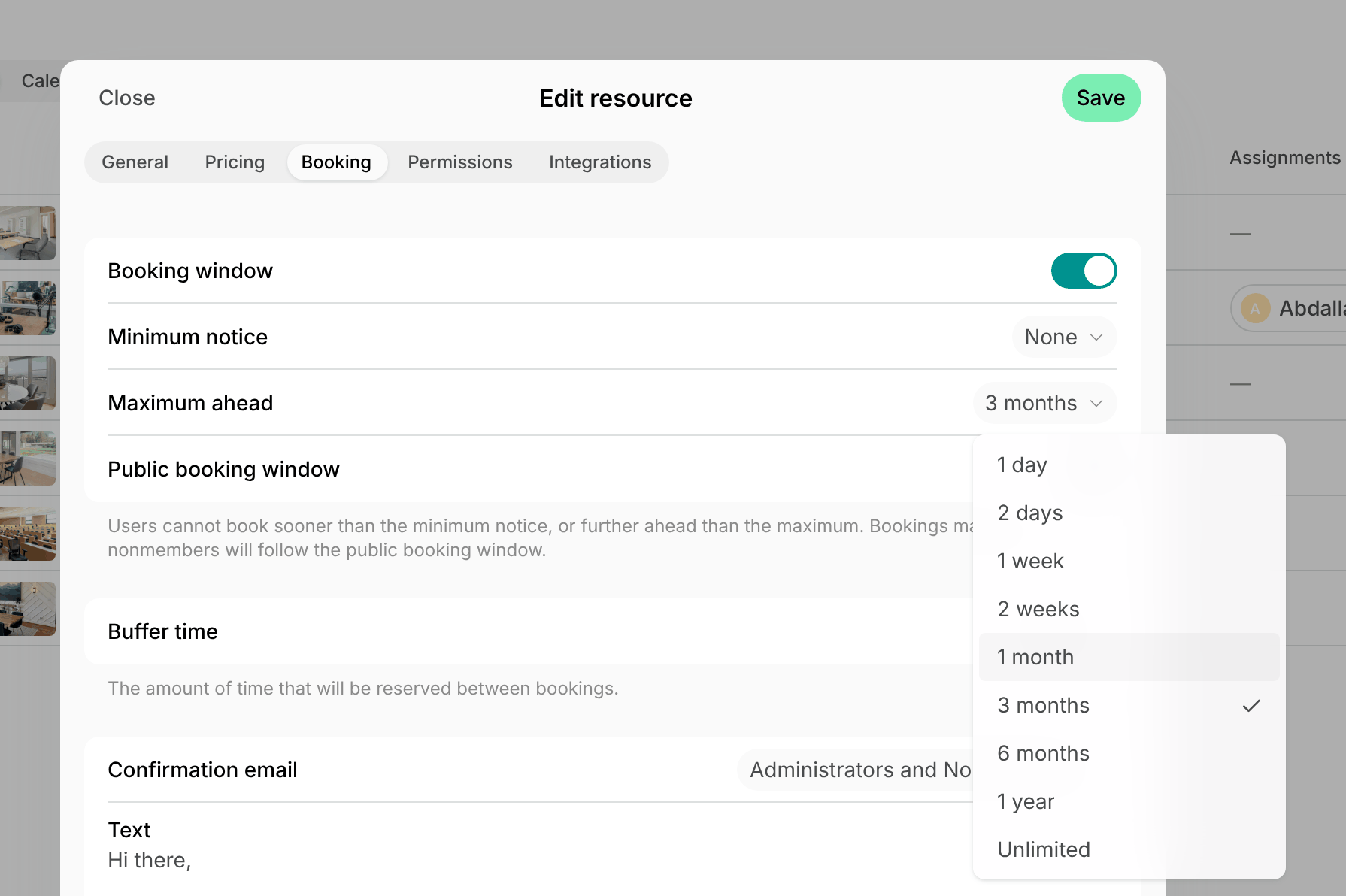
Restrict how far in advance customers can book a room, so they can’t reserve it months ahead just in case, and other customers can still book it when they need it.- Go to Resources > Rooms, hover over the room, and click (…) > Edit.
- On the Booking tab, enable Booking window and set Maximum ahead, such as 1 month. With 1 month, customers can book up to one month from today.
- To set it for several rooms at once, such as all call pods, select them on the Resources > Rooms page and press Actions > Booking window > Maximum ahead.
Limit recurring bookings
Restrict how long customers’ recurring bookings can repeat, so a customer can’t book a room every week for months and then stop coming:- To stop customers from creating recurring bookings that repeat indefinitely, and limit how long a series can run, enable Booking window on the room’s Booking tab and set Maximum ahead, such as 1 month. Every booking in the series has to fall within it, so with 1 month, a customer can book a weekly meeting for one month at most.
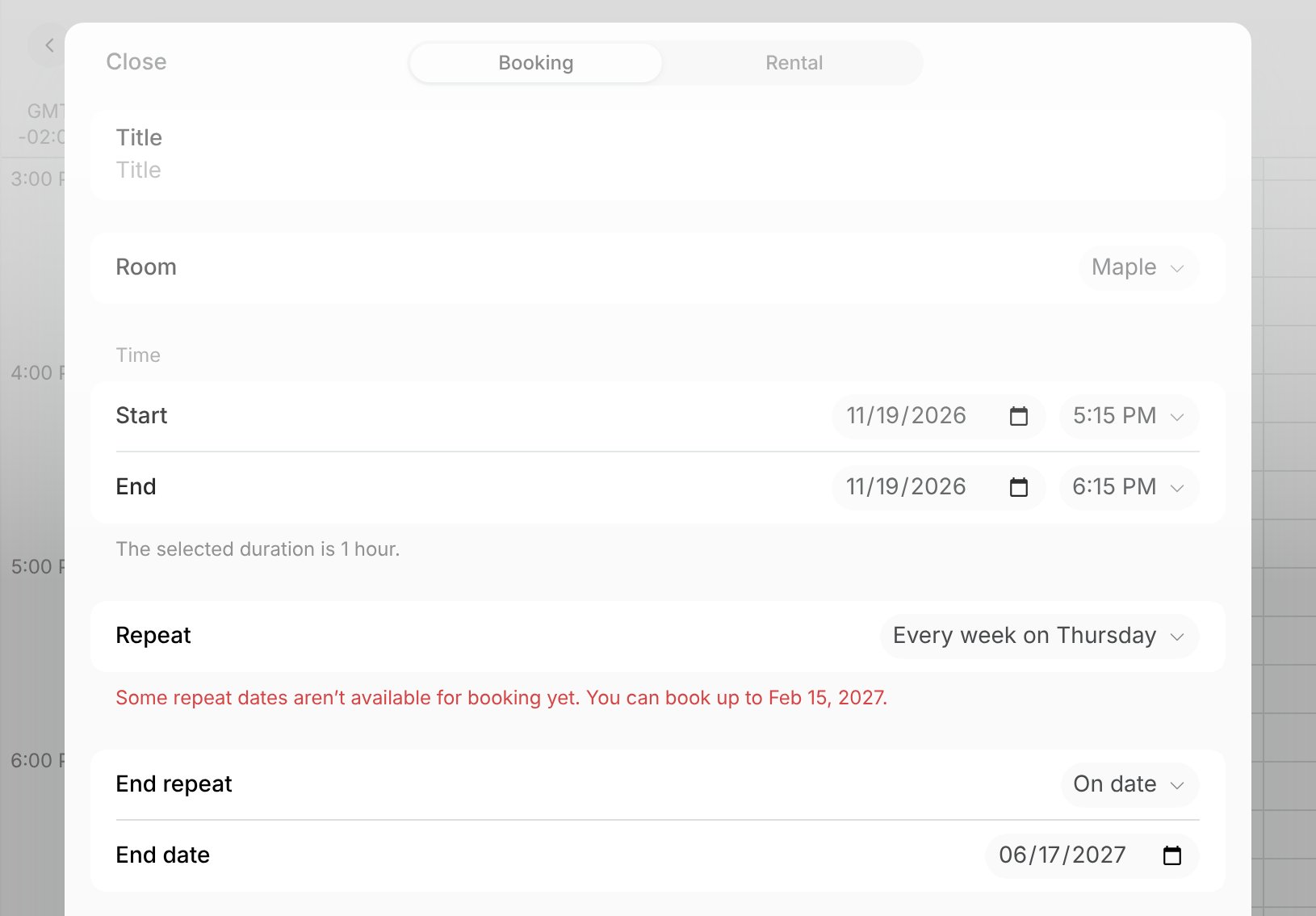
- For free rooms, set Book for free on the Location settings > Resources > Rooms page. Each repeat counts as one booking, and customers can book the next one only once a previous booking has ended.
- With One active, customers can make only one-time free bookings.
- With Three active, they can book a weekly meeting for three weeks at most.
The Book for free limit applies to all free rooms of the location.
Give members credits to book rooms
Give customers a monthly allowance of credits with their membership to spend on room bookings, so each customer gets a fair share of room time and nobody books far more than the rest.- Turn on credits for your location.
- On each room’s Pricing tab, enable Credits and set the price per hour.
- Set the credit price in line with the room’s money price, such as 1 credit per hour for a $10 phone booth and 4 for a $40 conference room. A more expensive room then uses up more of a member’s allowance, so members book the room that fits their meeting.
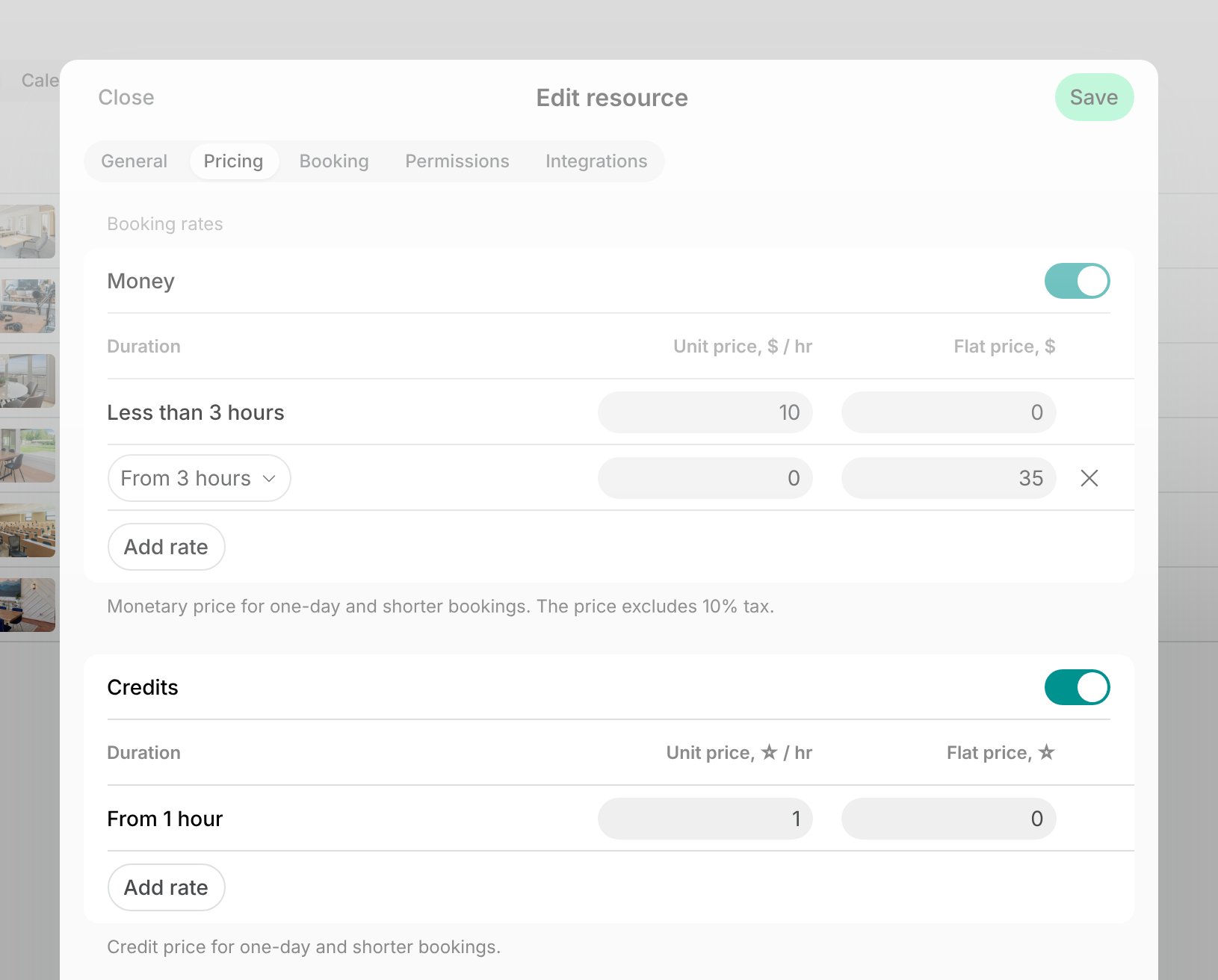
- Add credits to the plans of your memberships, such as 10 a month. Members get them at each renewal, and unused credits expire at the next one.
- For members who run out of credits, offer credit packages to buy more.
Publish your room booking rules
Share your room booking rules with customers, so they know what’s expected. Create a guide with the rules, such as how many free bookings a customer can hold, how long a meeting can last, and how to cancel. Customers find it on the Information and Support pages of the member web portal and mobile app.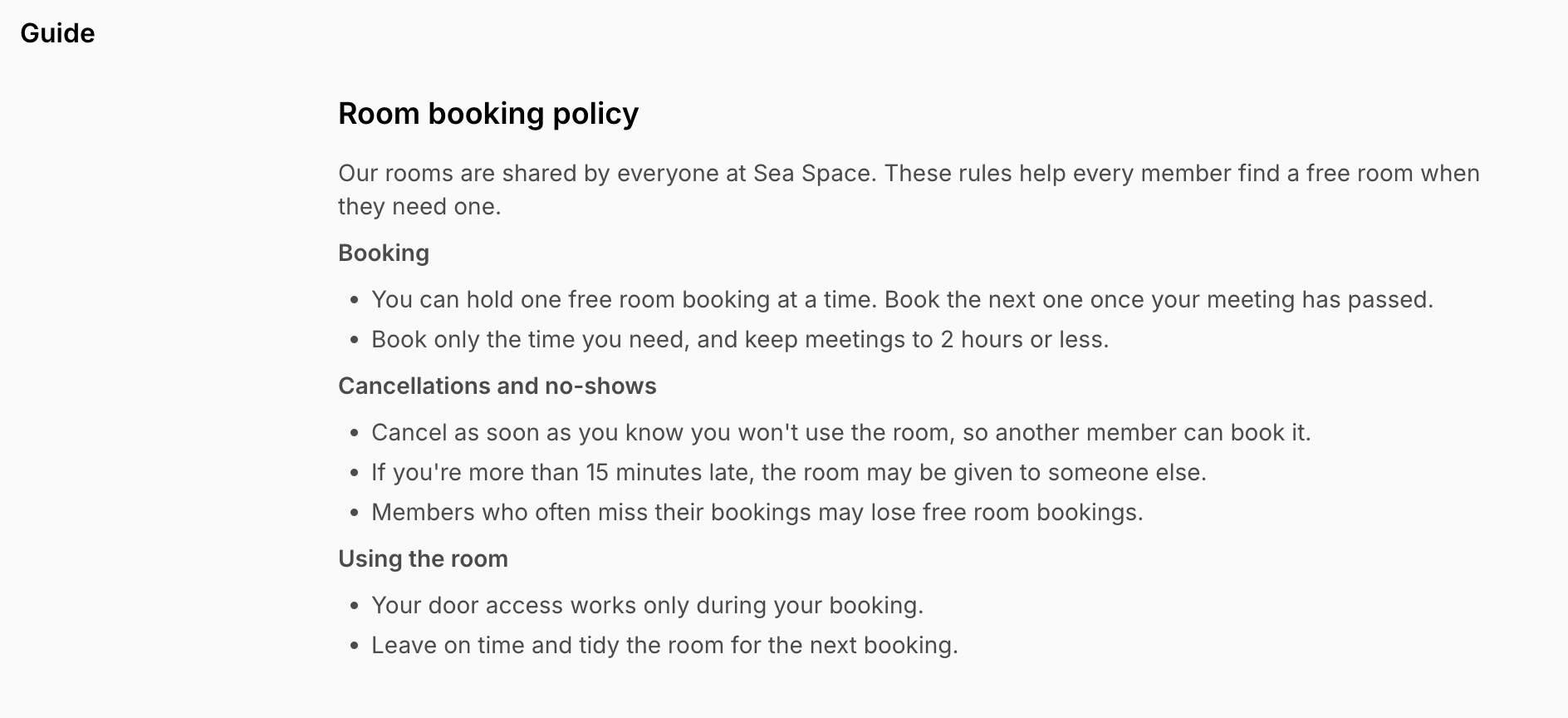
Set a cancellation deadline
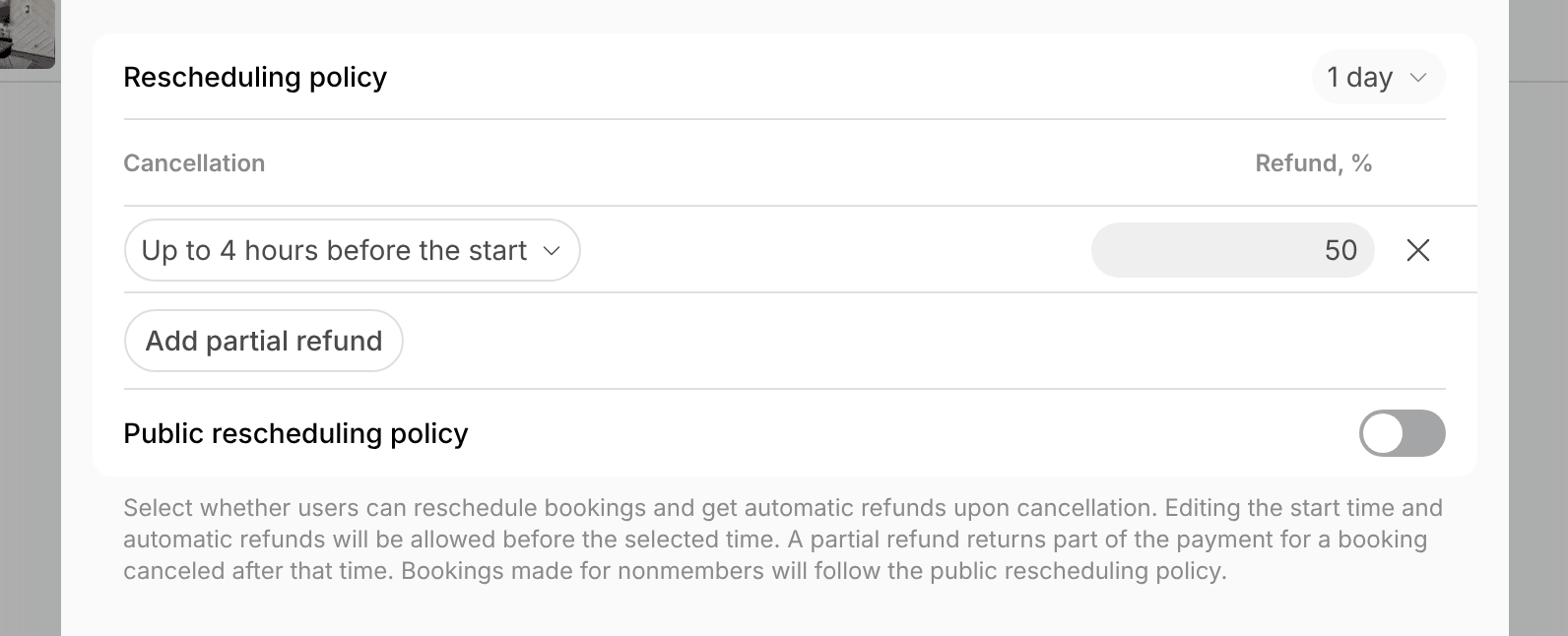
For rooms booked with credits or money, refund customers only when they cancel before a deadline you choose, so they cancel early when their plans change, and other customers can still book the room.- Go to Resources > Rooms, hover over the room, and click (…) > Edit.
- On the Booking tab, set Rescheduling policy to how long before the start customers can cancel with a refund, such as 1 day. A later cancellation or a missed booking is still charged.
- To give back part of the price for a later cancellation, click Add partial refund, such as 50% up to 4 hours before the start.
Keep rooms free when members need them
Keep peak hours for members
Choose when nonmembers can book each room, so your members can still get a room at busy times, such as weekday mornings.- Go to Resources > Rooms, hover over the room, and click (…) > Edit.
- Choose how nonmembers book the room:
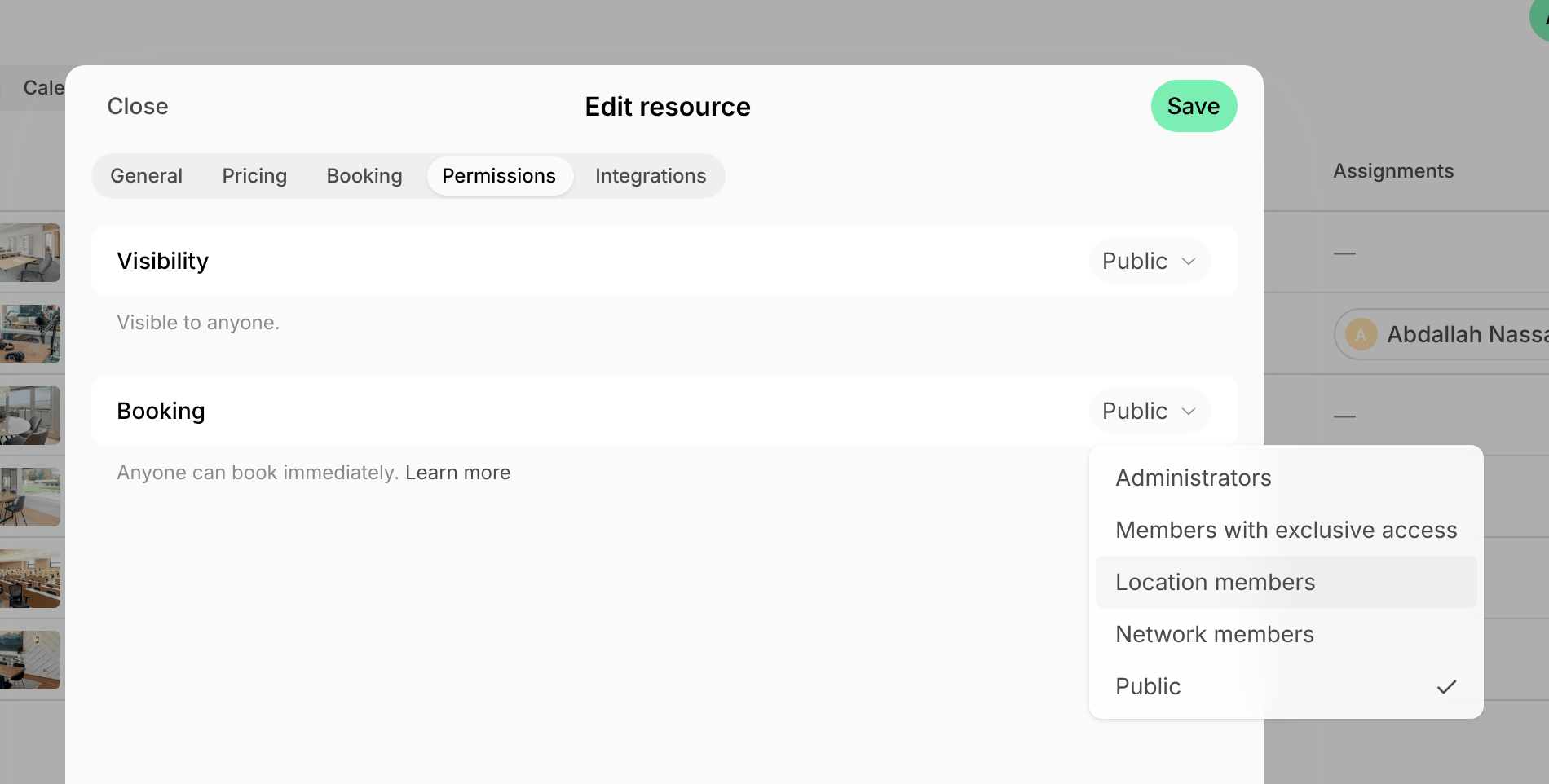
- To let nonmembers request a booking instead of booking immediately, and review each booking request yourself, set Booking to Location members on the Permissions tab.
- To let nonmembers book closer to the date, enable Public booking window on the Booking tab and set its Maximum ahead, such as 2 days, to stop them booking long in advance.
- To let nonmembers book at quieter hours only, such as afternoons, enable Custom schedule on the Booking tab and set those hours in its public schedule.
Set prices by demand
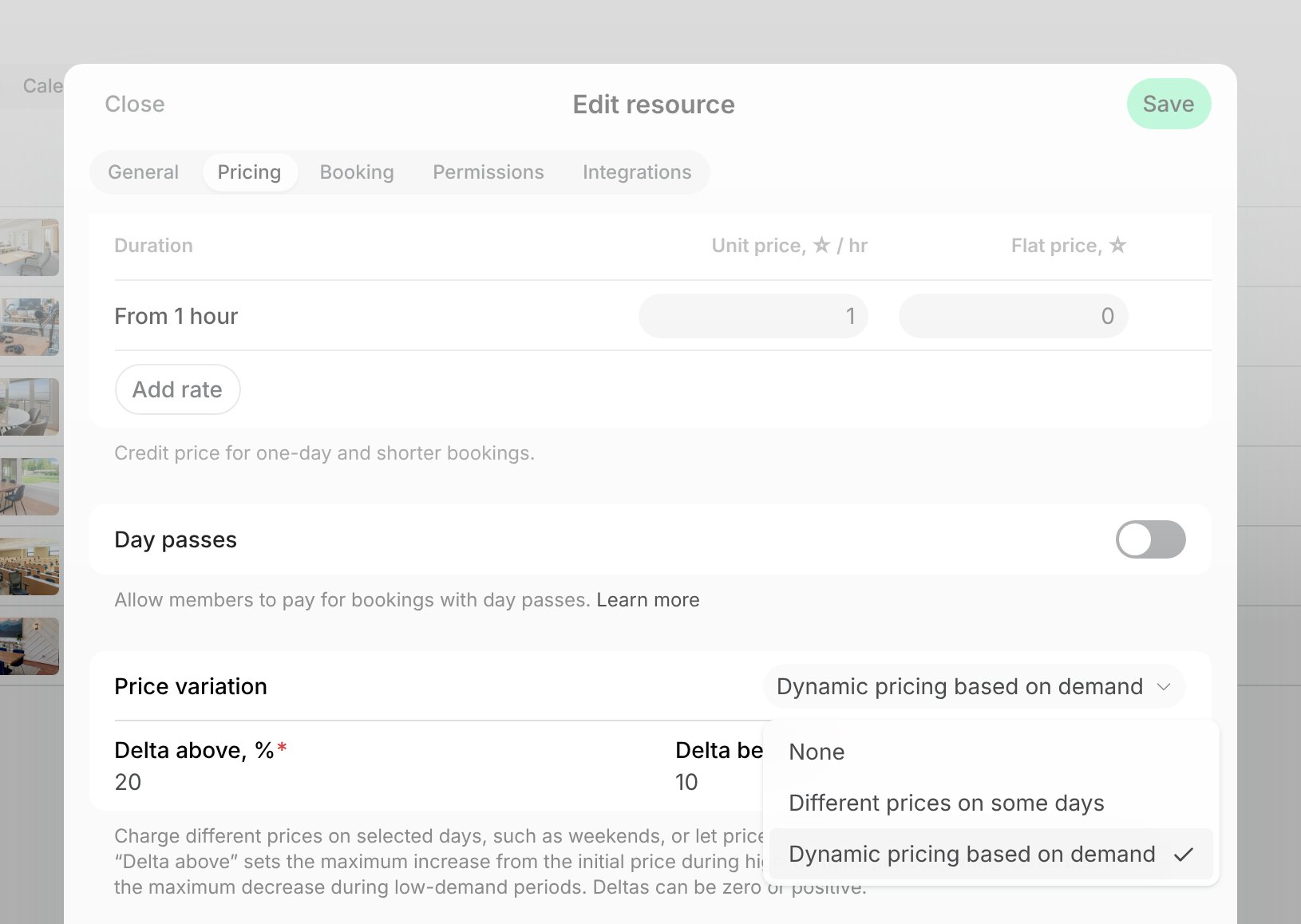
Charge more for rooms at busy times and less at quiet ones, or set different prices on specific days, so some customers move their meetings to quieter times, such as from Tuesday morning to Friday afternoon.- On the room’s Pricing tab, under Price variation, select Dynamic pricing based on demand. The price goes up at busy times and down at quiet ones, within the limits you set.
- A room with no bookings yet gets its lowest price, so use it for rooms that customers already book.
- To charge a fixed price on some days instead, such as a lower one on Fridays, select Different prices on some days.
Leave time between bookings
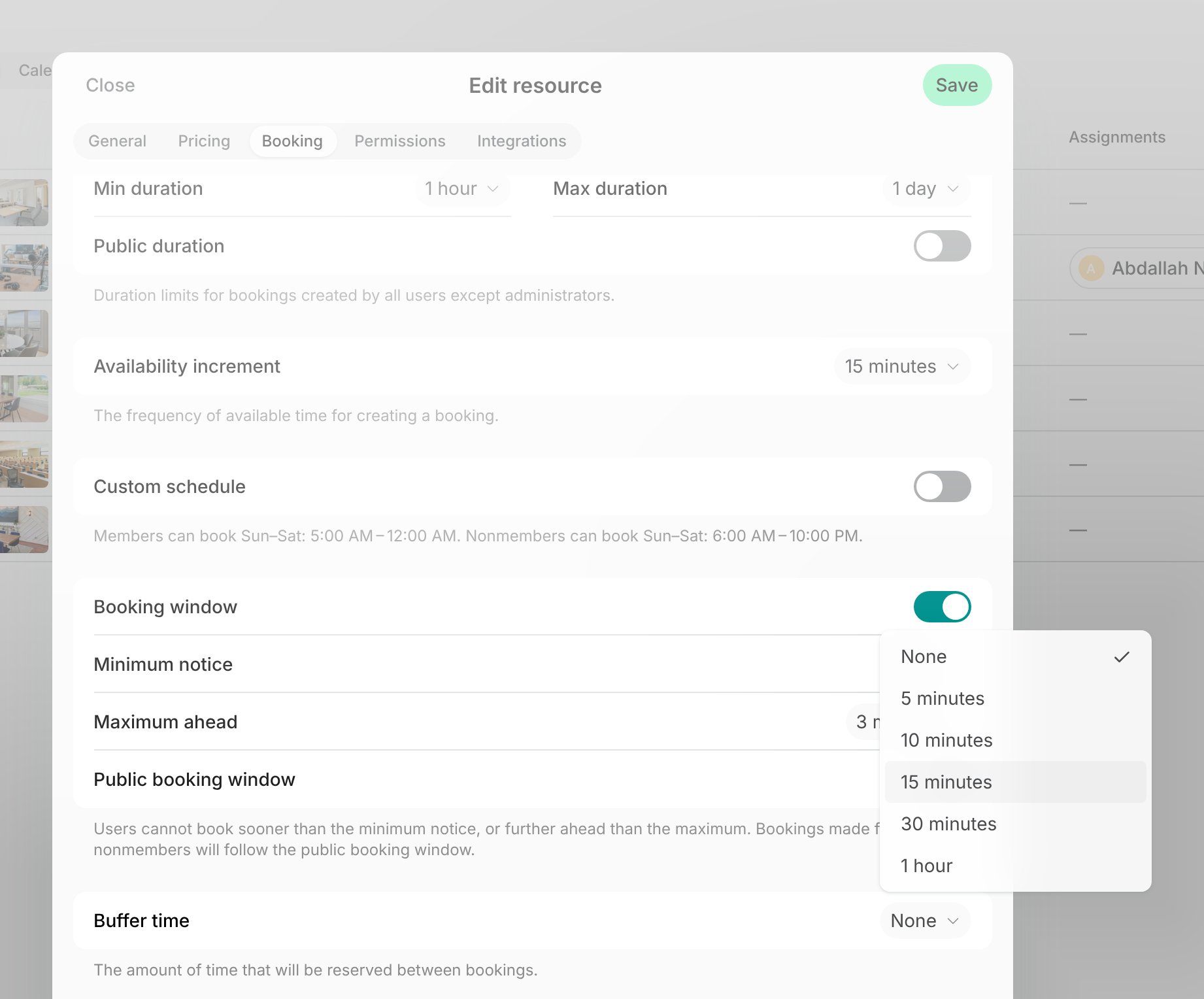
Leave a gap between bookings, and remind customers when their booking is about to end, so meetings finish on time and your team can tidy the room before the next customers arrive.- Go to Resources > Rooms, hover over the room, and click (…) > Edit.
- On the Booking tab, set Buffer time, such as 15 minutes. It’s kept free before and after each booking.
- Click your network name top left > Network settings > Notifications > Preferences.
- Set the Push setting of Booking end reminders to Always on. Members get a reminder 5 minutes before their booking ends, which asks them to be ready to leave a room with a buffer time.
Reserve large rooms for large groups
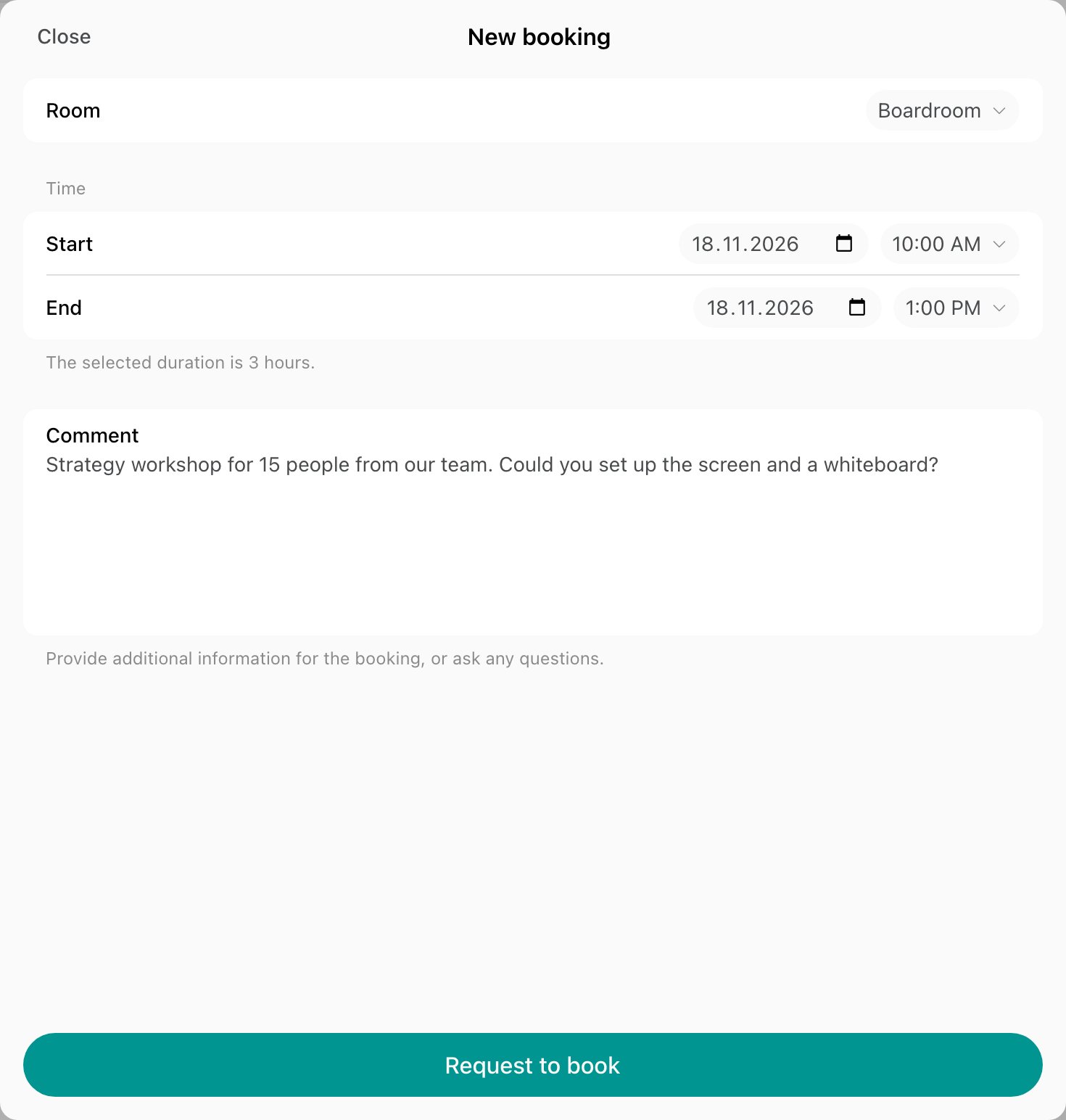
Keep your largest rooms, such as a 30-seat conference room, for big groups. Approve each booking yourself, or split a room into smaller ones, so customers don’t book a room for thirty for a call of two.- To accept booking requests for a large room instead of letting customers book it right away, set Booking to Administrators on its Permissions tab. Customers then request a booking, and you approve it, change its time, or decline it.
- If the room can be divided, such as with a movable wall, add the whole room and each of its halves as three separate rooms, and link them by selecting the whole room as the Parent room of each half. Small groups can then book a half, and big groups the whole room, while Spacebring makes sure the whole room and its halves are never booked at the same time.
Let only the booker into the room
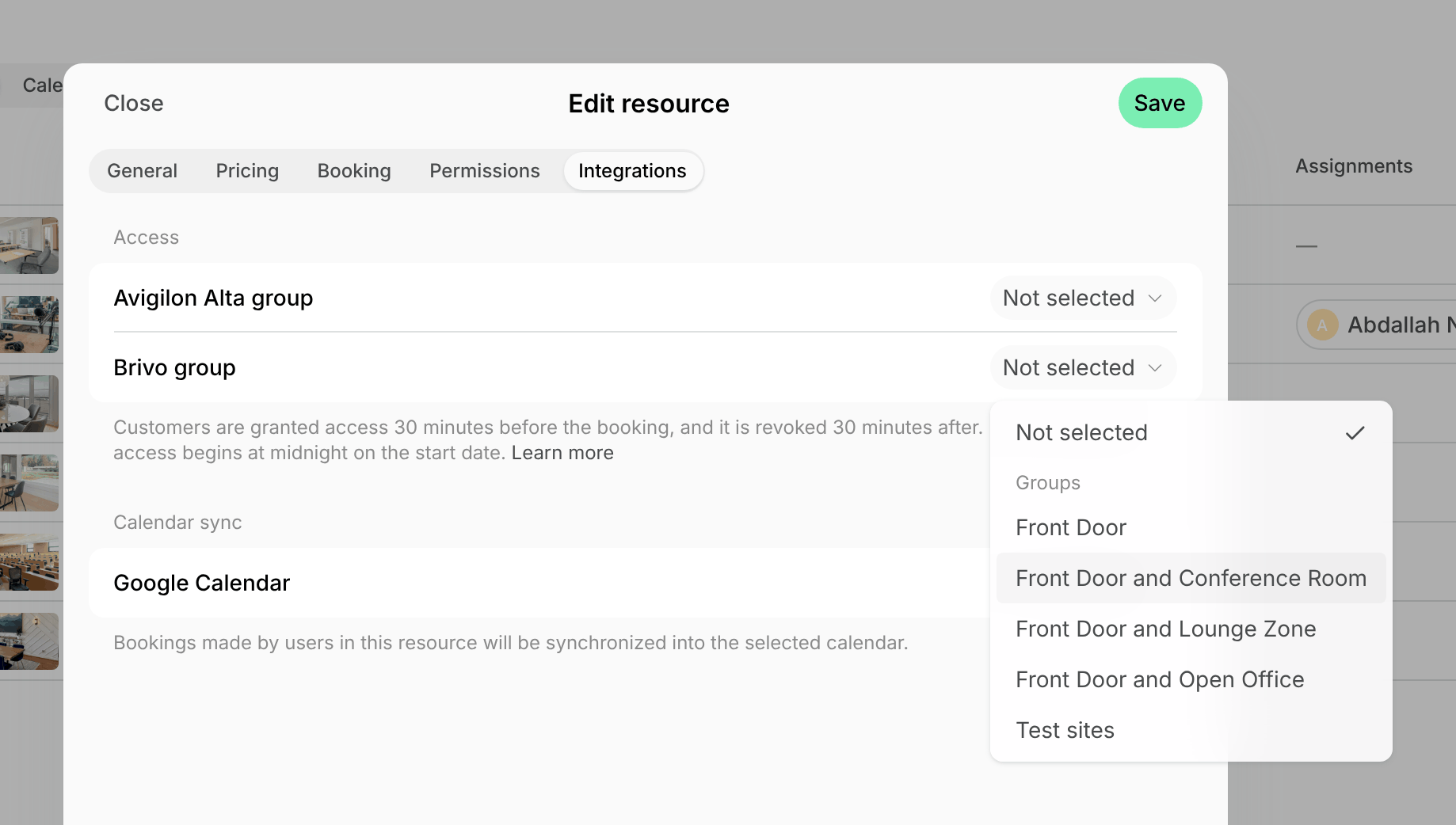
If you use an access control integration, let only customers with a booking open a room’s door, so nobody else can use a room they haven’t booked.- Go to Resources > Rooms, hover over the room, and click (…) > Edit.
- On the Integrations tab, under Access, select the group of the room’s door. Customers get access 30 minutes before their booking, and lose it 30 minutes after.
Block a room for repairs
When a room needs repairs, block it for those dates, so customers can’t book it while it’s out of use:- For a few days, edit the room, enable Custom schedule on its Booking tab, and select the dates in its Closed days.
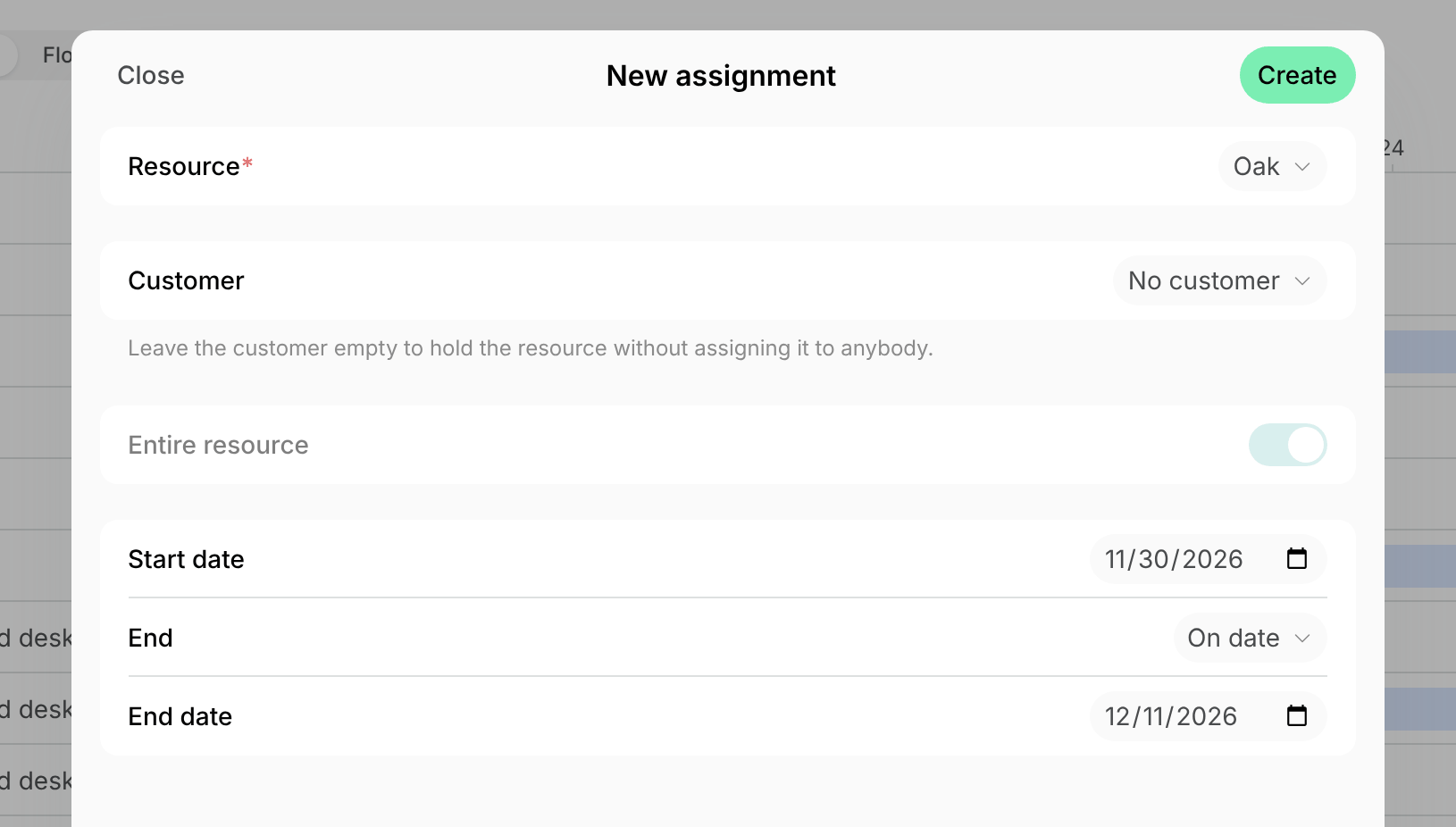
- For a longer period, create an assignment without a customer for the room. Nobody can book it for the dates it covers.
Help members find a free room
Show availability at the room door
Let customers check at the door whether a room is free, and book it on the spot. Place a tablet with Room display next to each room door. It shows whether the room is free and for how long, and customers book it by scanning its QR code.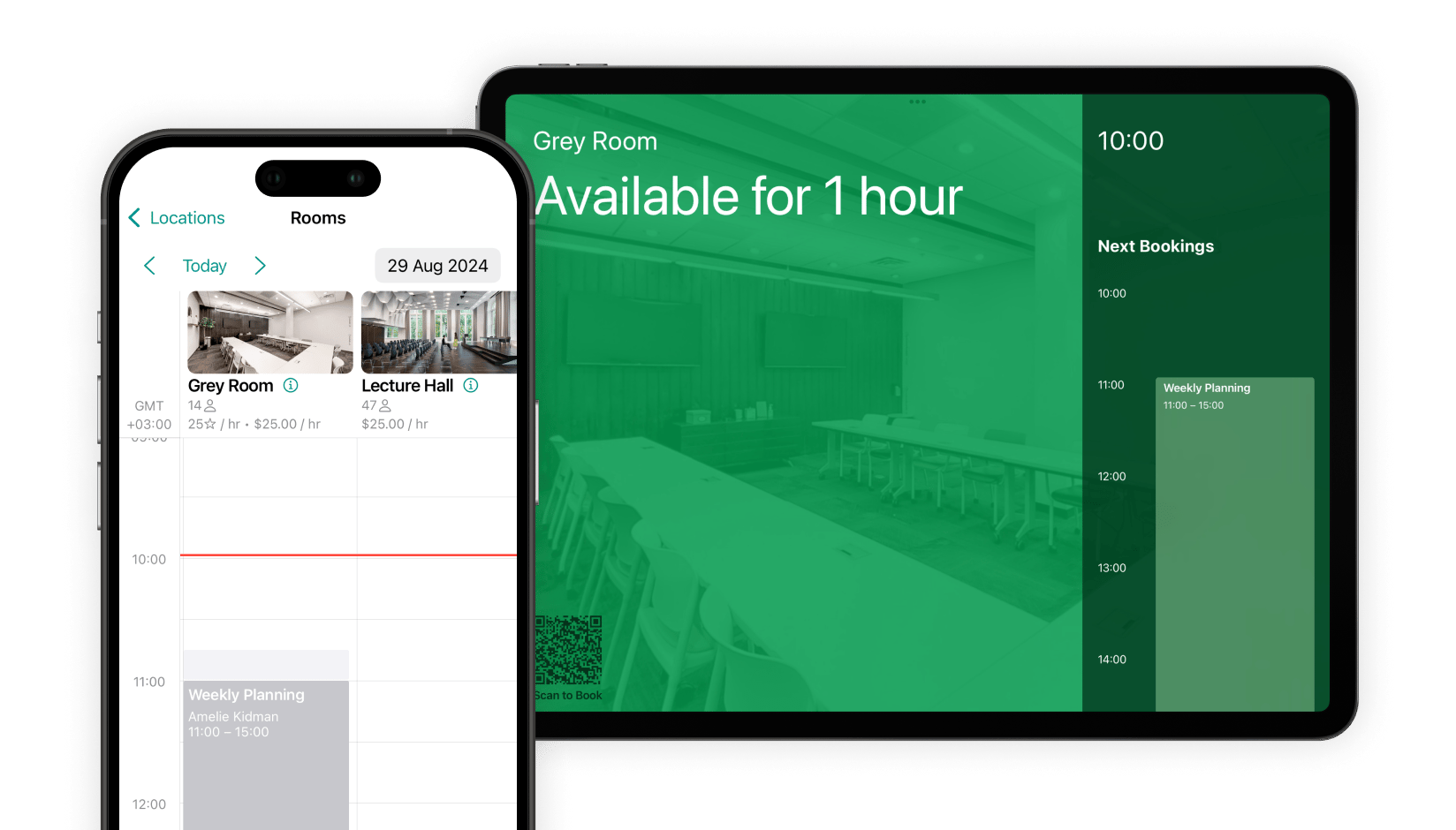
Show free rooms on a floor plan
In a large space, or one on several floors, let customers see on a map which rooms are free. With floor plans, the Rooms page in the member web portal and mobile app shows which rooms are free now and on which floor, and customers book a room by tapping it.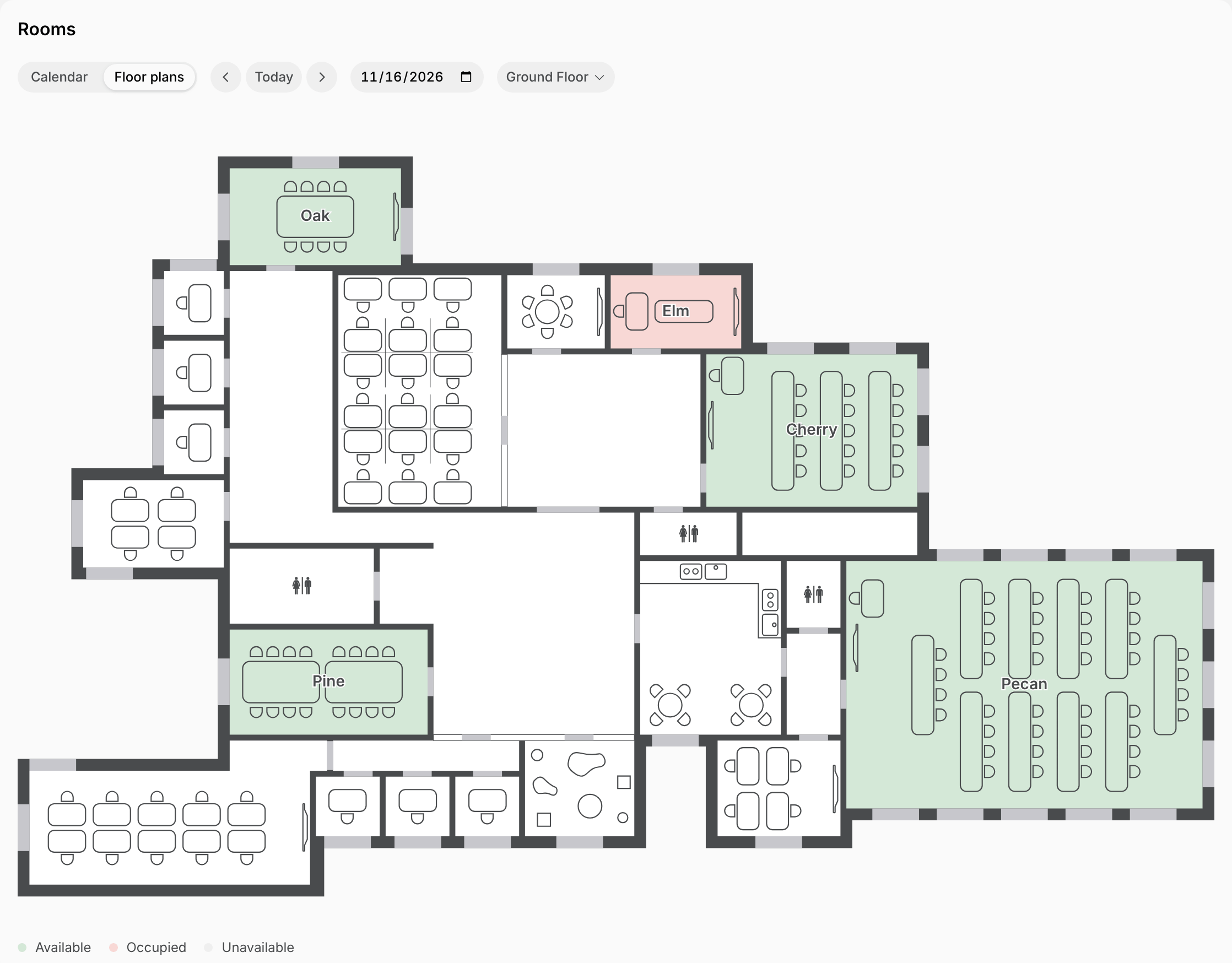
Review how rooms are used
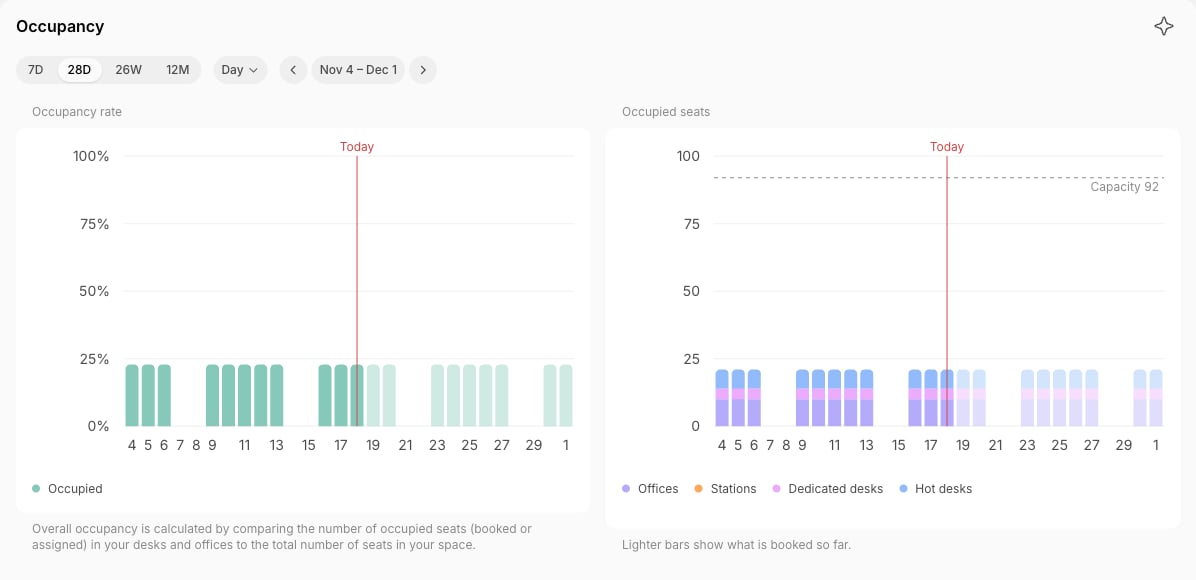
Check how often each room is booked before you change its limits or prices, to see which rooms are full every morning and which stay empty all week.- Go to Analytics > Occupancy to see the share of each day’s hours booked for each type of room, such as meeting rooms and conference rooms, over the period you select.
- To compare rooms over a month, set up a report agent that emails you each room’s bookings and booked hours, with the least booked rooms first.
- To look at the bookings yourself, go to Resources > Bookings, filter by Resource type and Date, and export a bookings report.
- Adjust the limits and prices of each room, such as a shorter Max duration for a room that’s always full, or a Public visibility for one that stays empty.
FAQs
Do these limits apply to bookings I make for a customer?
Do these limits apply to bookings I make for a customer?
No. Min duration, Max duration, Booking window, and Book for free limit only the bookings customers make themselves. You can book a room for a customer for longer, further ahead, or more often, such as for a workshop you agreed on.