

Configure immediate sign-ups
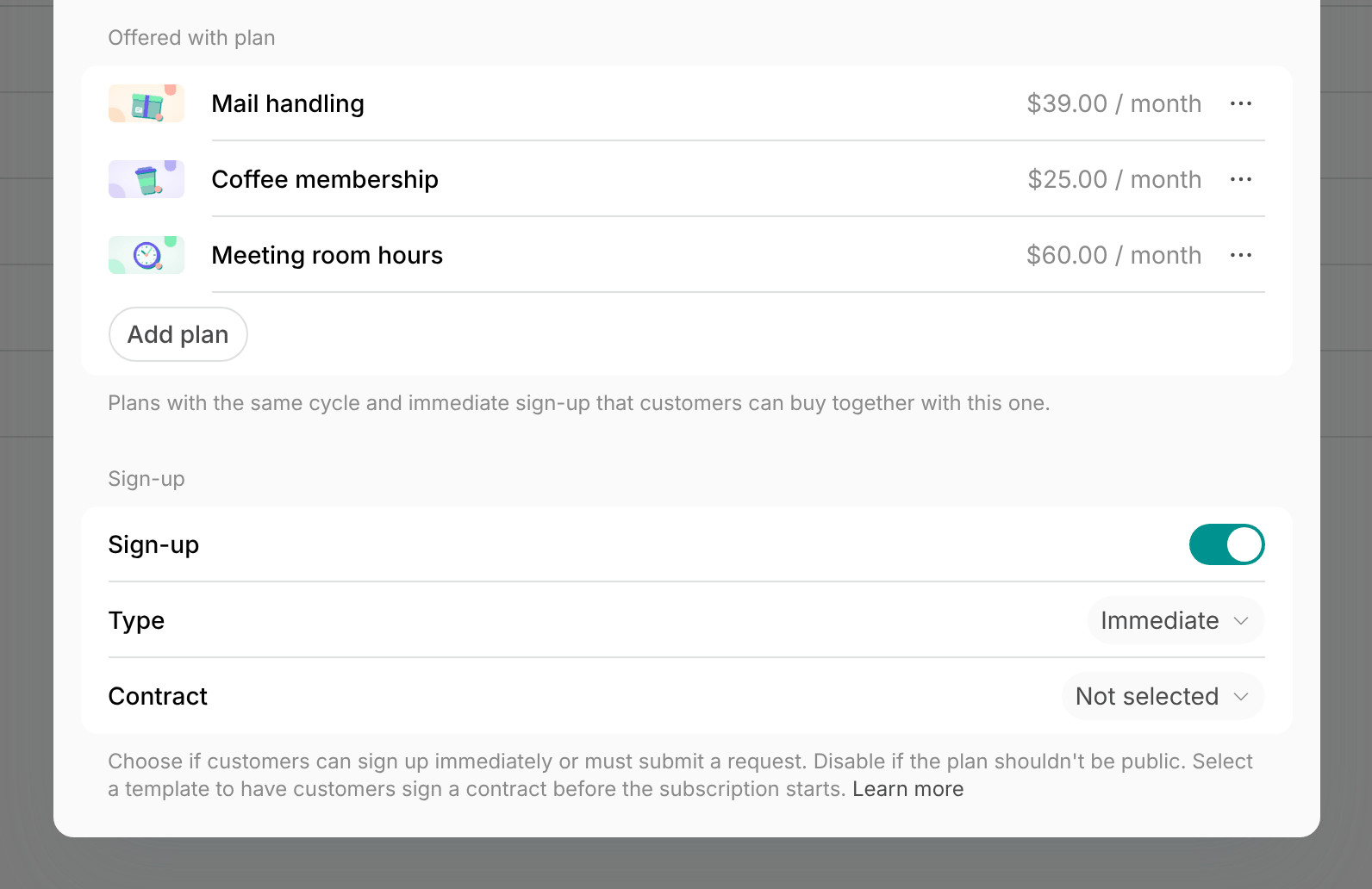
- Create or edit a membership.
- Open its plan under Plans.
- Enable Sign-up.
- Select Immediate as the sign-up Type.
- Complete the rest of the membership configuration.
How users sign up for memberships
Where users can sign up
Member web portal or mobile app On the landing page of your member web portal, customers find a Sign up button on the card of each location where at least one membership plan has Sign-up enabled.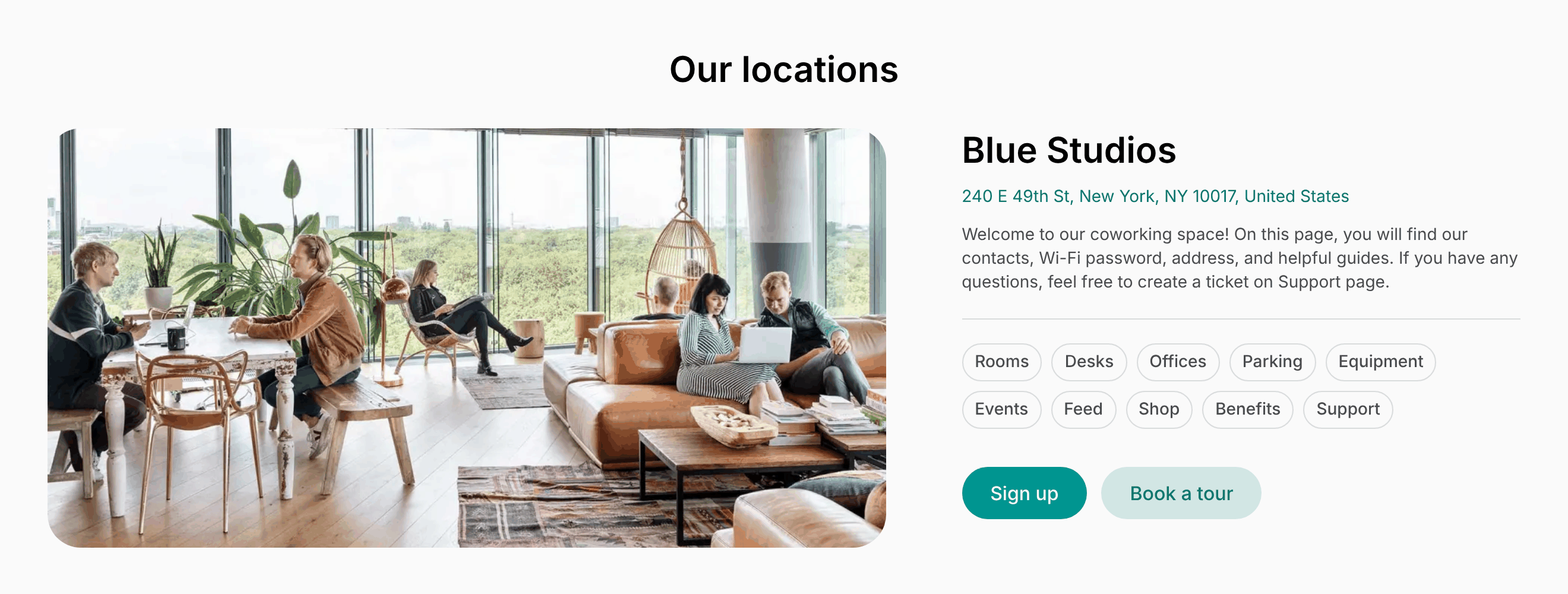
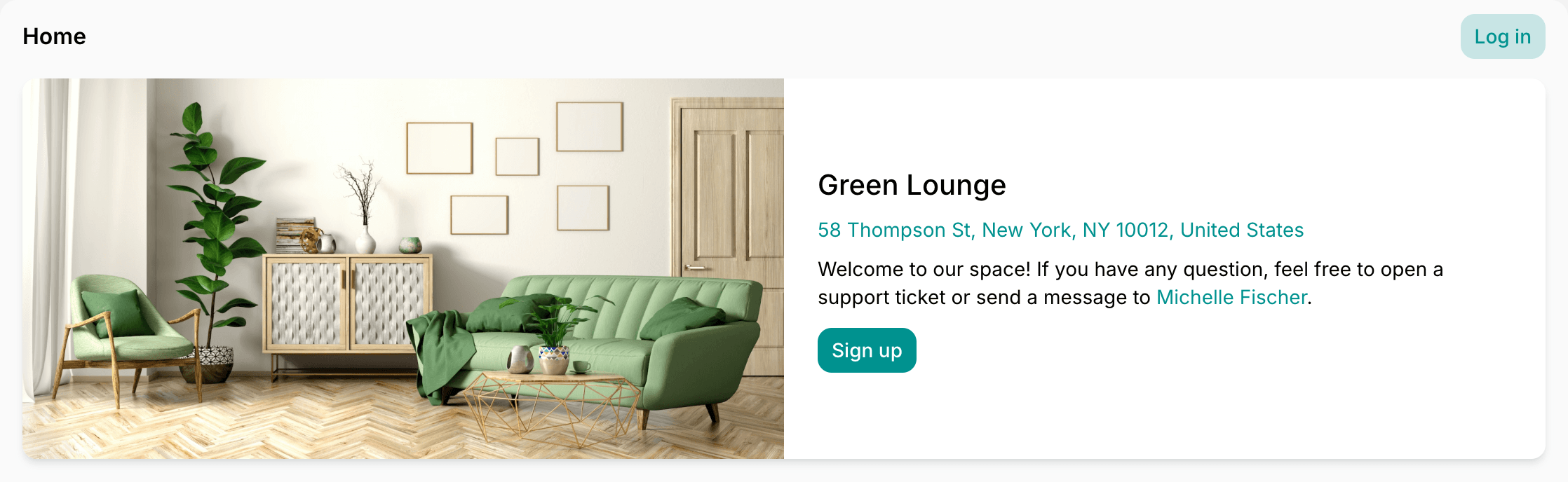
- Customers who already have a subscription at another of your locations see a View plans button there instead.
- In the web portal on tablets and computers, customers without a subscription at any location also see Sign up above the location’s menu, on every page of the location.
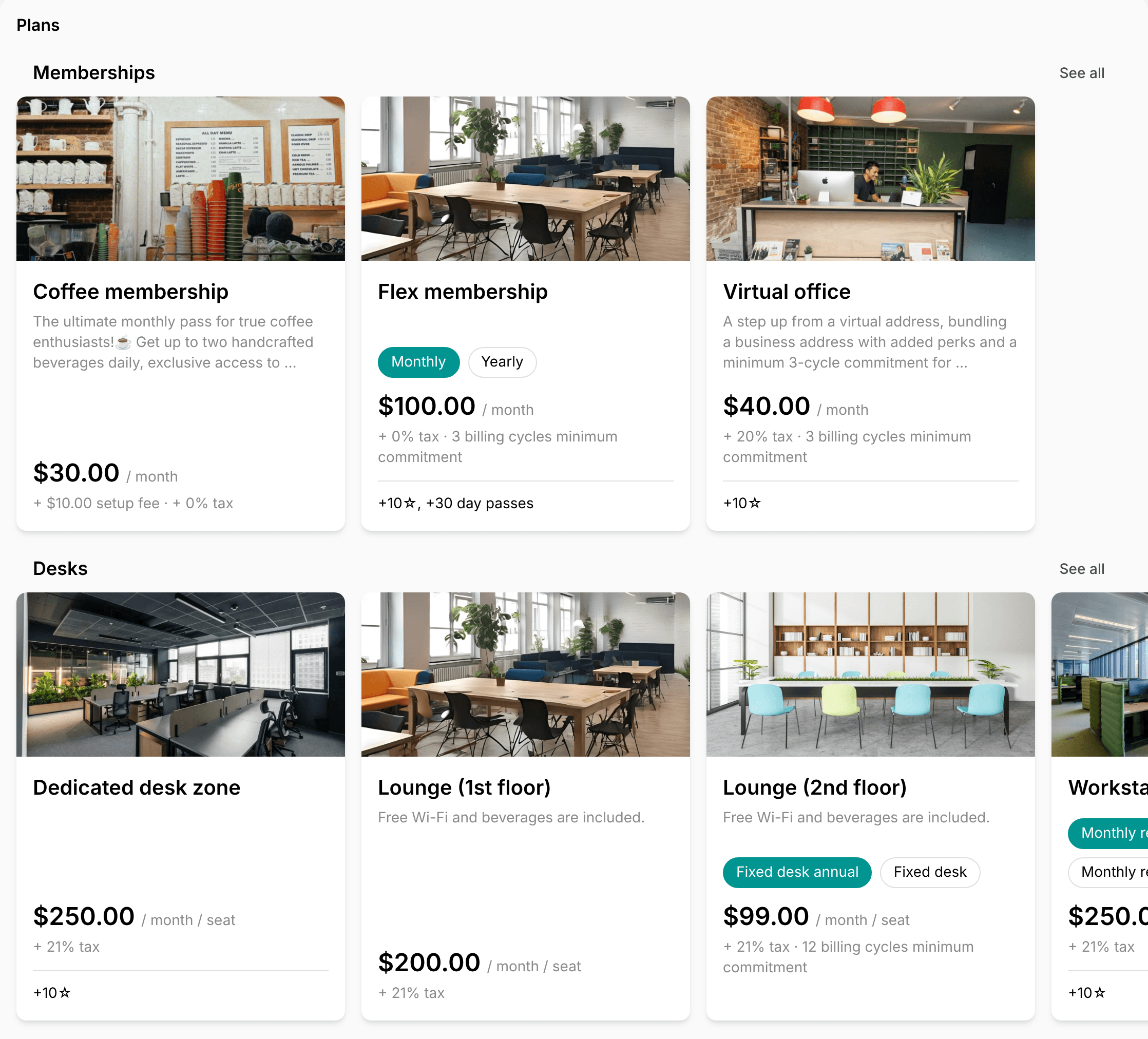
- Memberships comes first, with a card for each membership.
- Then comes a section for each resource page with rental plans, such as Desks or Offices, with a card for each resource.
- See all next to a section’s name shows all its cards on one page.
- On a membership with several plans, such as Monthly and Yearly, customers switch between them on its card to see each price.
- A card shows up to three plans. When there are more, See all on the card opens the membership or resource with all its plans.
Your marketing site, social media, or direct membership links
Copy direct links to your memberships and share them across all customer touchpoints:- Your marketing site CTAs
- Social media
- Email campaigns and other communication channels
- Directly with interested prospects
Sign-up flow
- After selecting the desired membership and clicking
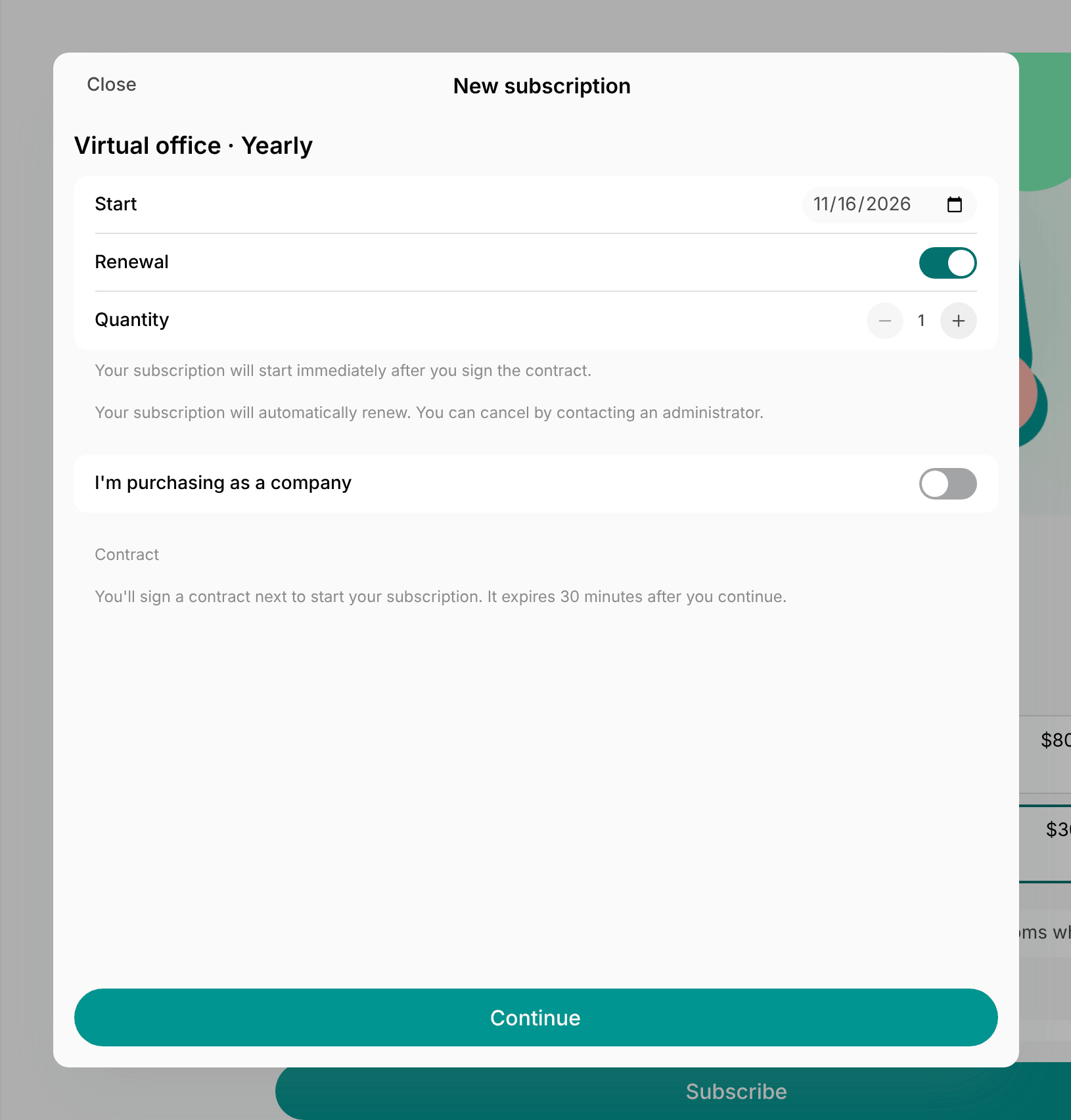
Subscribe, users are guided through a welcoming onboarding. - Choose a subscription Start date.
- When the first cycle is prorated, users see its dates and the credits and day passes they receive for it, then what they receive on each renewal.
- Set Renewal preference:
- Enabled — get an automatically recurring subscription.
- Disabled — sign up for one cycle only (1 week, 1 month, etc.).
- The Renewal option is automatically enabled and not manageable if the membership has a minimum commitment period of more than 1 cycle, or your billing cycle anchor settings require it.
- Choose Quantity (e.g., 3 hot desk memberships for a team).
- Choose to sign up as an individual member or as a company.
- Individual — the user’s name is prefilled from onboarding information. They get a personal subscription and appear under Customers > Users.
- Company — enable the I’m purchasing as a company option. A company with the provided name is created under Customers > Companies, and the user is assigned as the company manager. A company subscription lets users invite teammates and share access under a single subscription.
- If the membership plan offers extra plans with it, users can see and add them under the Add to your subscription section.
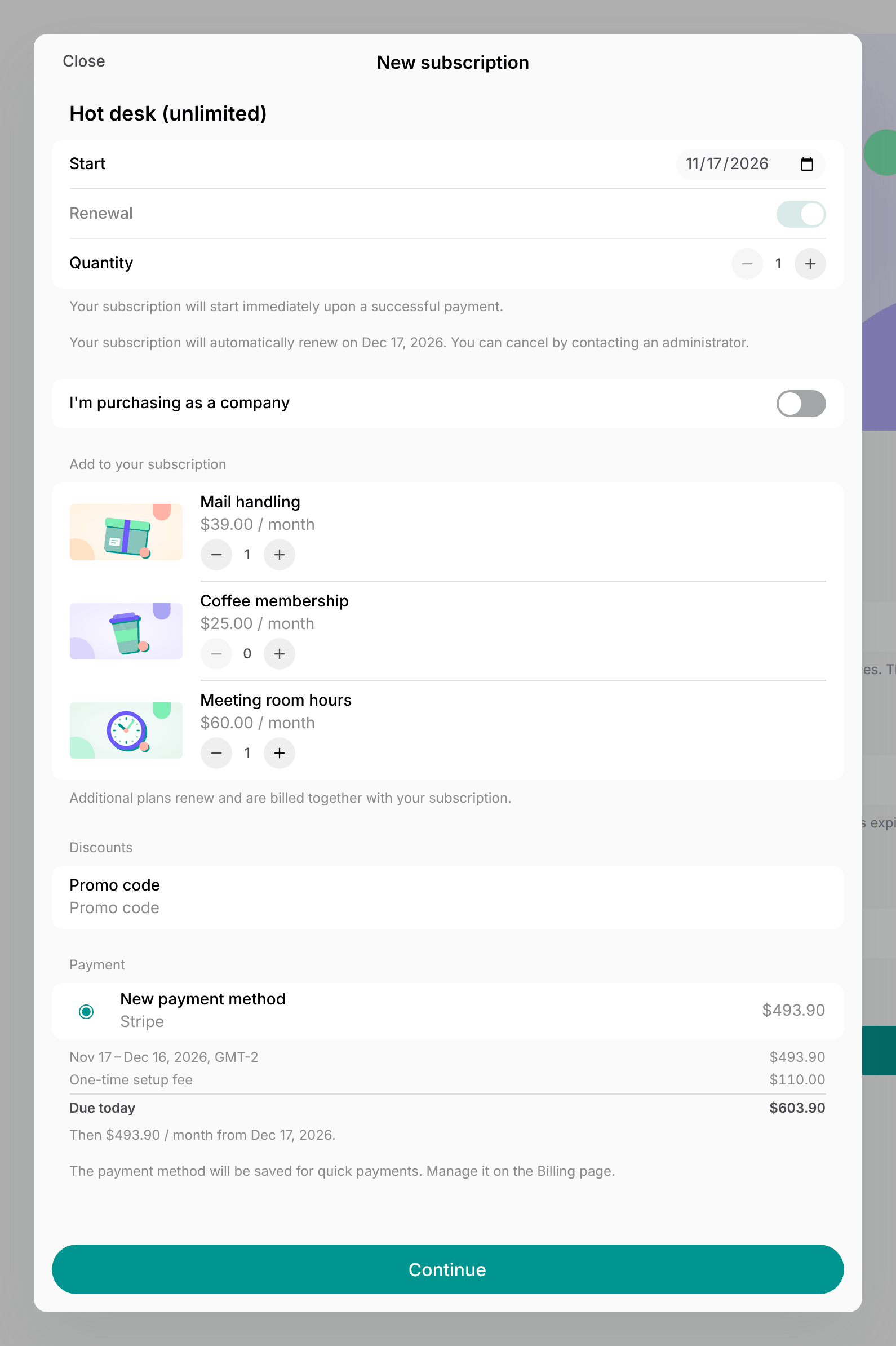
- Enter a discount promo code, if applicable. Plans with a Contract don’t offer promo codes.
- The promo code discounts the main membership plan, and also each added extra plan if it applies to it.
- Enter their billing details for invoices and receipts if required.
- Enter payment method details and complete payment.
- For a plan with a Contract, click Continue to contract instead, and sign the contract within 30 minutes. If it isn’t signed in time, the sign-up is canceled, and users can sign up again.
Sign up for another membership
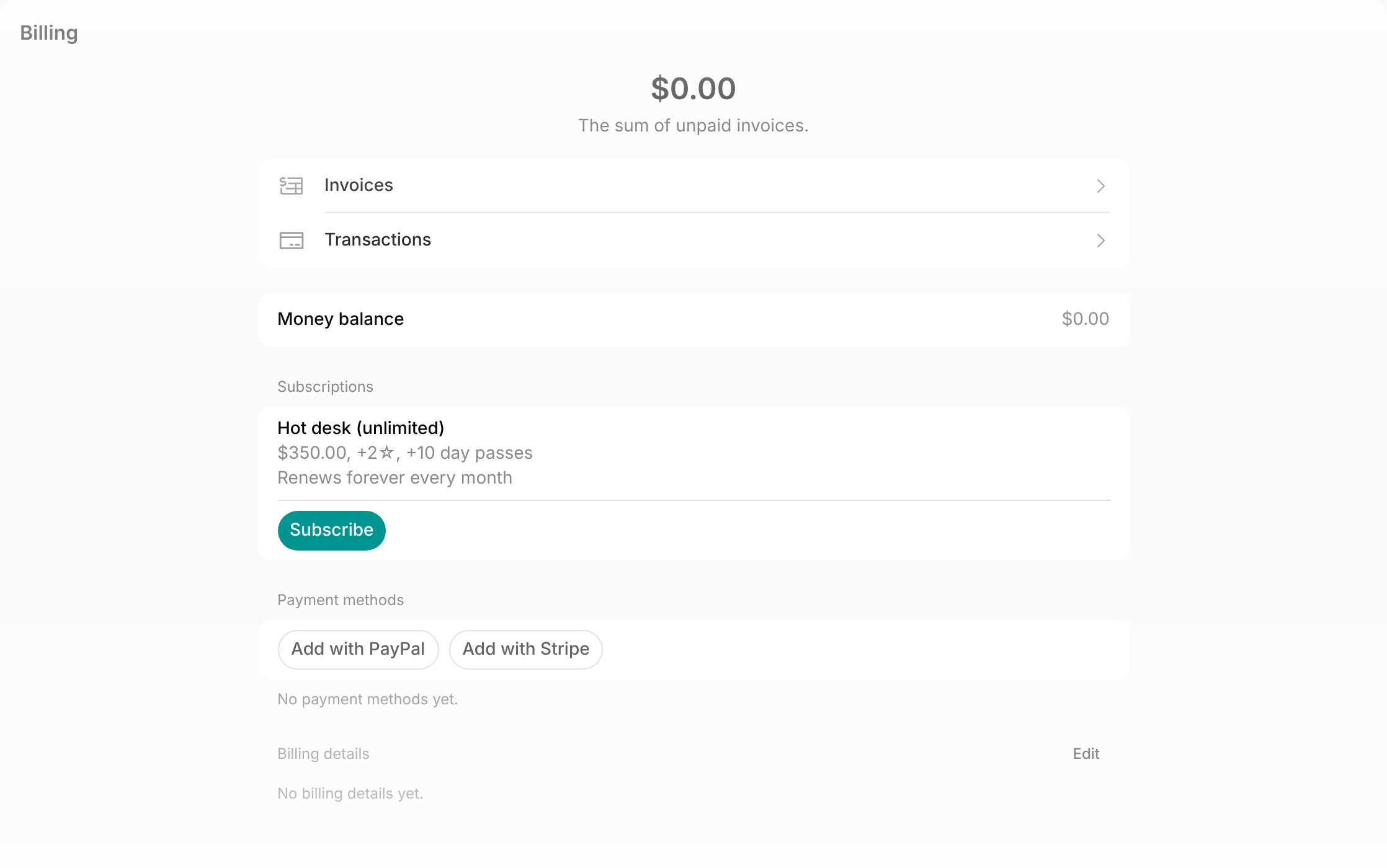
Customers who already have a subscription can always buy another one.- Go to the Membership page > Billing.
- Individual members subscribe from the Personal section.
- Company managers subscribe from the section with their company name.
- In the Subscriptions section, click Subscribe.
- Choose a membership and complete the same sign-up flow.
- Customers can pick a membership they already have or a different one — there is no limit on how many subscriptions one customer has.
- The purchase creates a separate subscription with its own start date, cycle, renewal, invoices, credits, and day passes. Nothing is added to an existing subscription, and credits and day passes from all subscriptions add up on the customer’s balance.
- Company users who are not managers can only buy a personal subscription. Buying for the company requires the company manager role.
- An individual member who signs up for a second subscription and enables I’m purchasing as a company creates a new company and becomes its manager, exactly as in a first sign-up.
How subscription starts
- When users sign up on their own, they pay for their first subscription cycle right away, even if the start date is in the future.
- With a plan that has a Contract, they sign it instead of paying. The first invoice is issued when the subscription starts. It’s charged automatically to the customer’s default payment method if they have one, or users pay it like any other invoice.
- Only after payment or signing, the system invites the user as a member and creates a subscription.
- Administrators receive a notification for every new membership sign-up.
- For a plan with a Contract, administrators with Contracts notifications on are notified once it’s signed instead.
- Once the subscription starts, the customer gets all the membership benefits, including credits, day passes, door access, Wi-Fi, and more.
- Customers view their subscription details, billing, credits, and day passes on the Membership page and can request subscription cancellation.
Our recommendations
- Boost new sign-ups by offering discounts on memberships through promo codes.
- Once new users sign up, welcome them and introduce them to your community with our onboarding tips.
FAQs
Do users receive a confirmation email when they purchase a membership?
Do users receive a confirmation email when they purchase a membership?
No. Users only receive a payment receipt with the invoice attached. To send your own welcome email, set up an agent that emails each new member, including those who sign a plan’s Contract at checkout.