Spacebring gifts credit for 30 days:
- Networks that existed when agents were released — €20 per location in the network.
- New networks — €10 per network.
What is charged
- Runs of your agents — the AI usage of each run, including runs of the support agent that replies to support tickets.
- Chats with Agent in which it analyzes data, in Spacebring or in Slack, WhatsApp, and Telegram — in Spacebring, the chat says so while it does. Other chat replies are free.
Top up the balance
The balance you top up doesn’t expire. It’s lost only when your Spacebring subscription is canceled.- Go to Network settings > Billing.
- In the Balance section, click Top up.
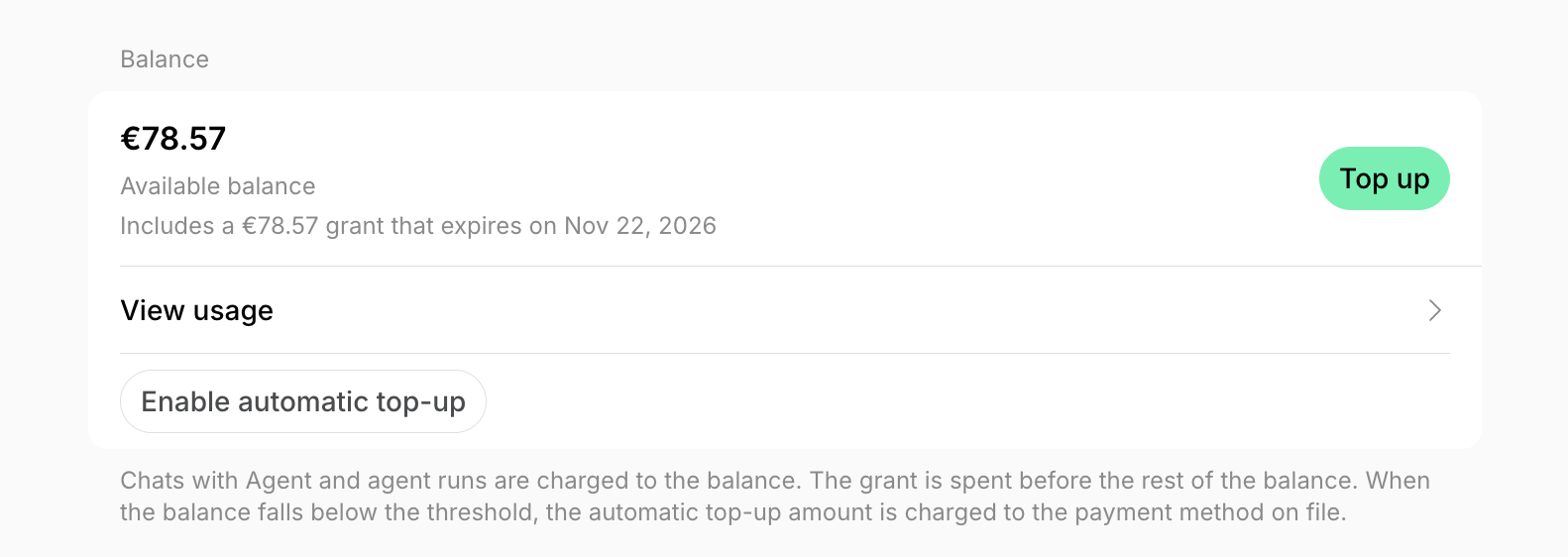
- Enter a whole Amount between €5 and €10,000, and click Top up.
- The amount is charged to your payment method on file, and the balance is credited once the payment is confirmed.
- If the payment can’t be completed automatically, click Pay invoice to pay the invoice issued for it. The balance is credited once the invoice is paid.
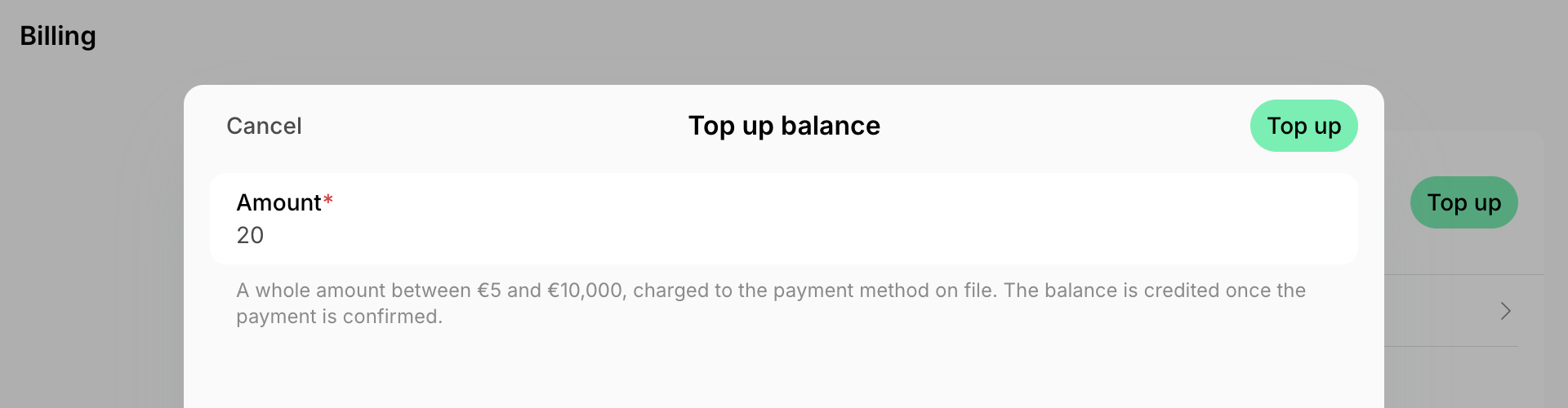
Top up automatically
- In the Balance section, click Enable automatic top-up.
- Set the Threshold, for example €10.
- Enter the Automatic top-up amount to add when the balance falls below the threshold, for example €50.
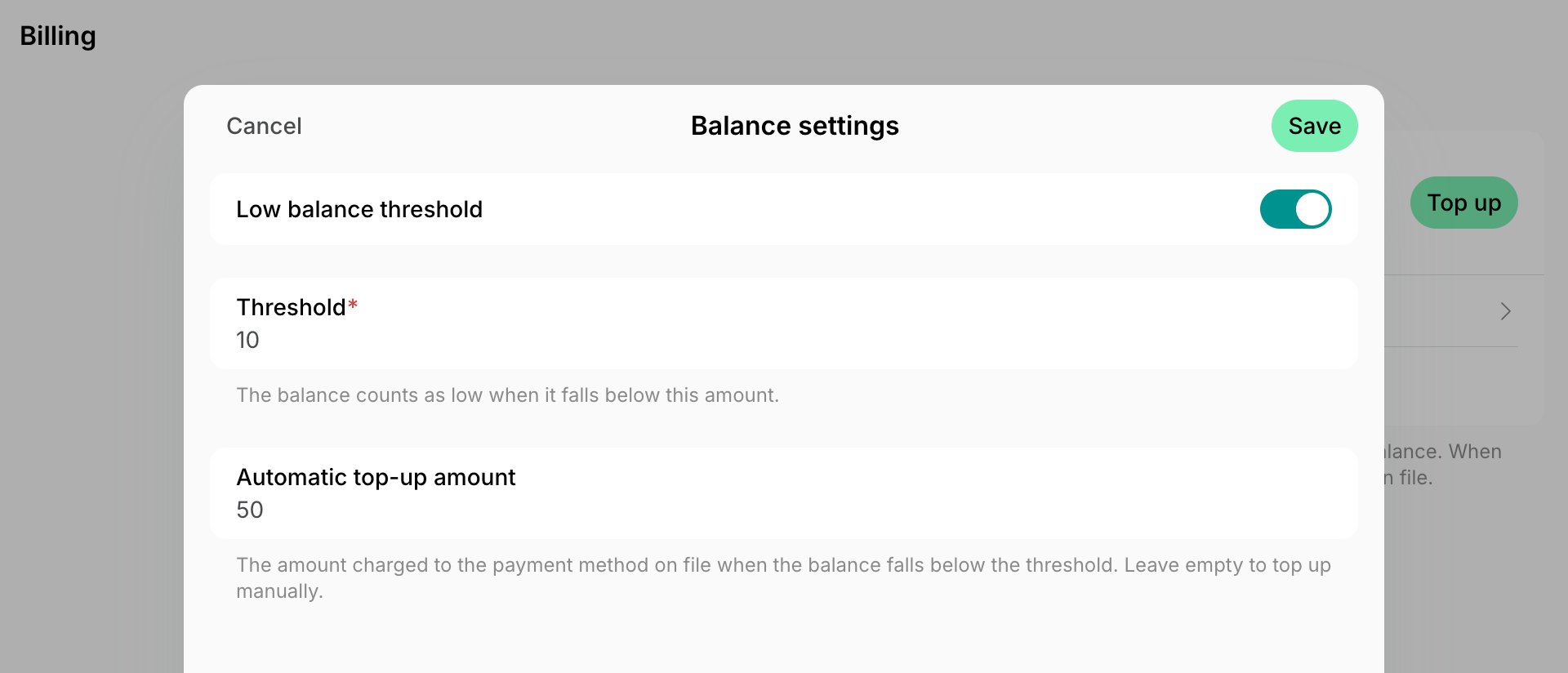
- Click Save.
Check balance transactions
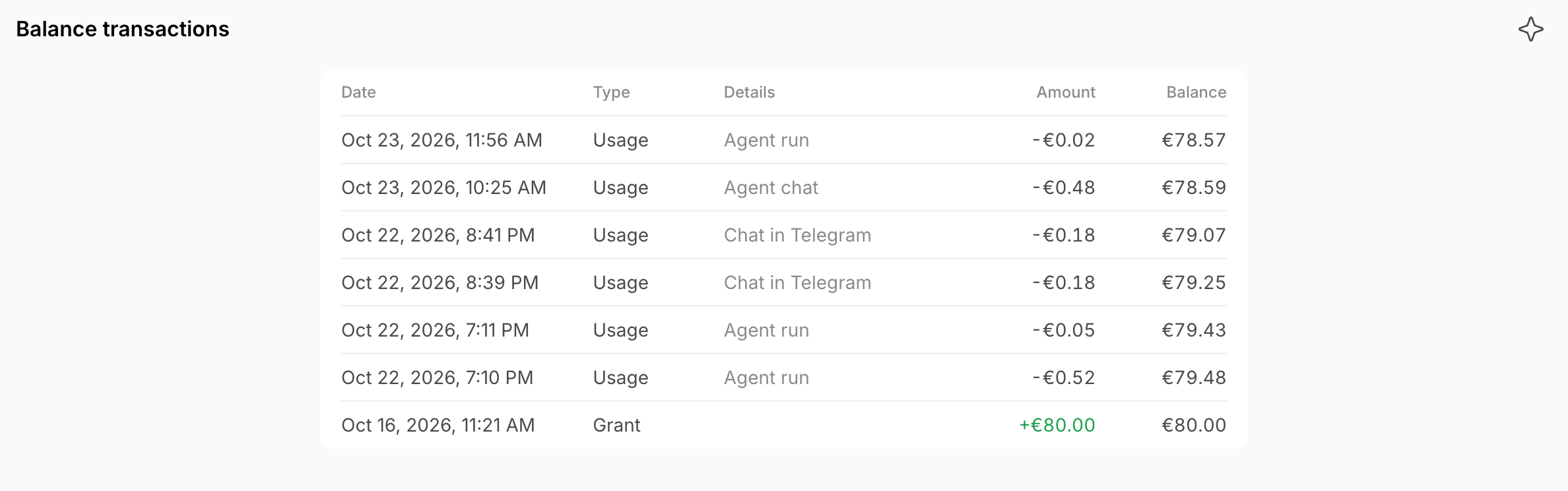
In the Balance section, click View usage. Balance transactions lists every change to the balance, newest first:- Type — Usage for a charge, Top up, Grant, Refund, or Adjustment.
- Details — for a charge, whether it was an Agent run, an Agent chat, or a chat in Slack, Telegram, or WhatsApp, such as Chat in Slack. Click an agent run or a chat to open the agent or the chat.
- User — the person whose action caused the change: who topped up the balance or chatted with the agent. It is empty for an automatic top-up, a grant, and an agent run.
- Amount and Balance — the change, and the balance after it.
When the balance runs out
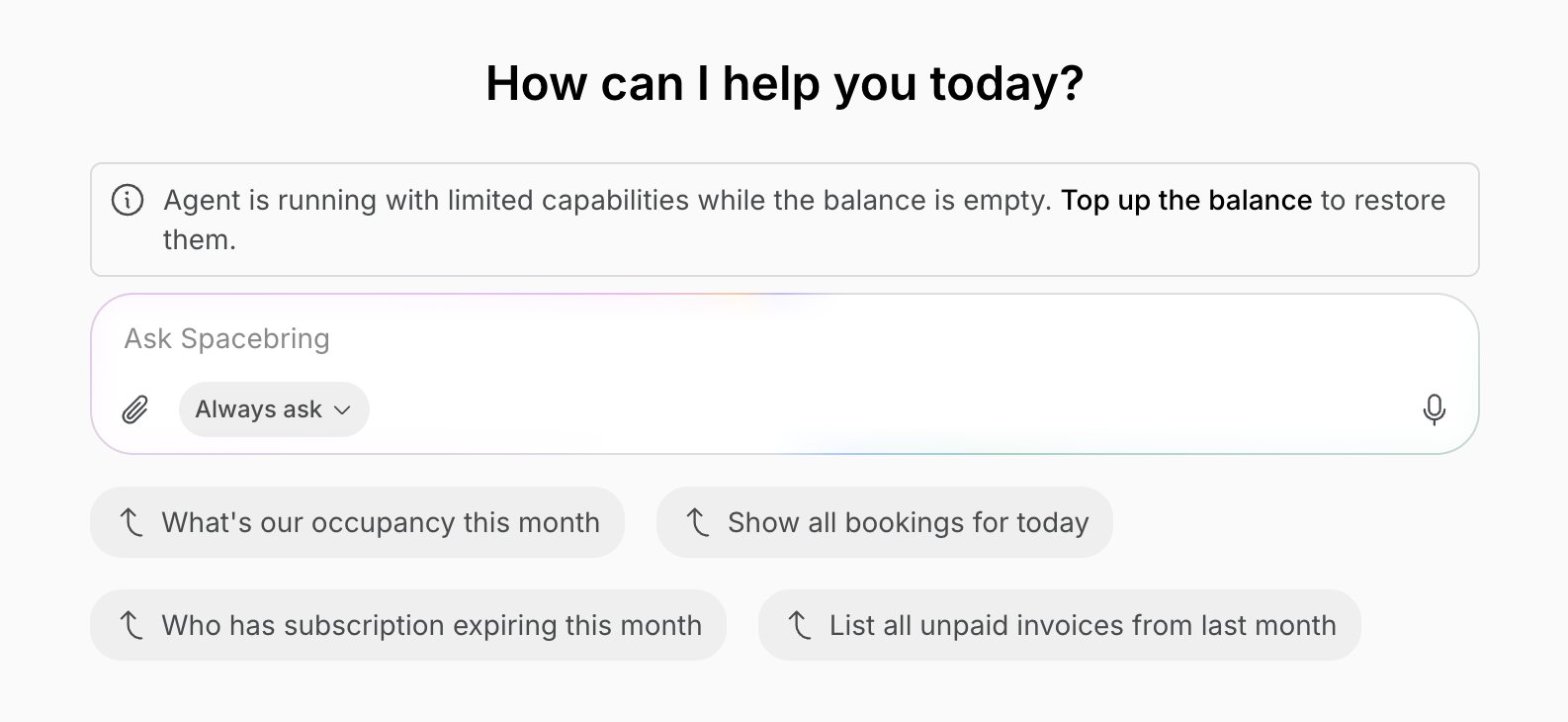
At zero balance, nothing more is charged:- Agent keeps chatting, in Spacebring and in Slack, WhatsApp, and Telegram, with limited capabilities: it runs on a lighter model, can’t analyze data, and has fewer skills. In Spacebring, a banner in the chat says so, with a link to top up the balance.
- Agents don’t run. Their runs show as Skipped, and owners get a notification and an email about it, at most once a day.