

Find an email
- On the left-side panel, click (…) menu next to your network name.
- Go to Network settings > Notifications > Email activity.
- Find the email in the list. The newest emails are at the top.
- To narrow the list, click Add filter and pick a Date, Status, Category, or Audience. You can pick several values in one filter.
- To find the emails sent to one person, type their full email address in Search.
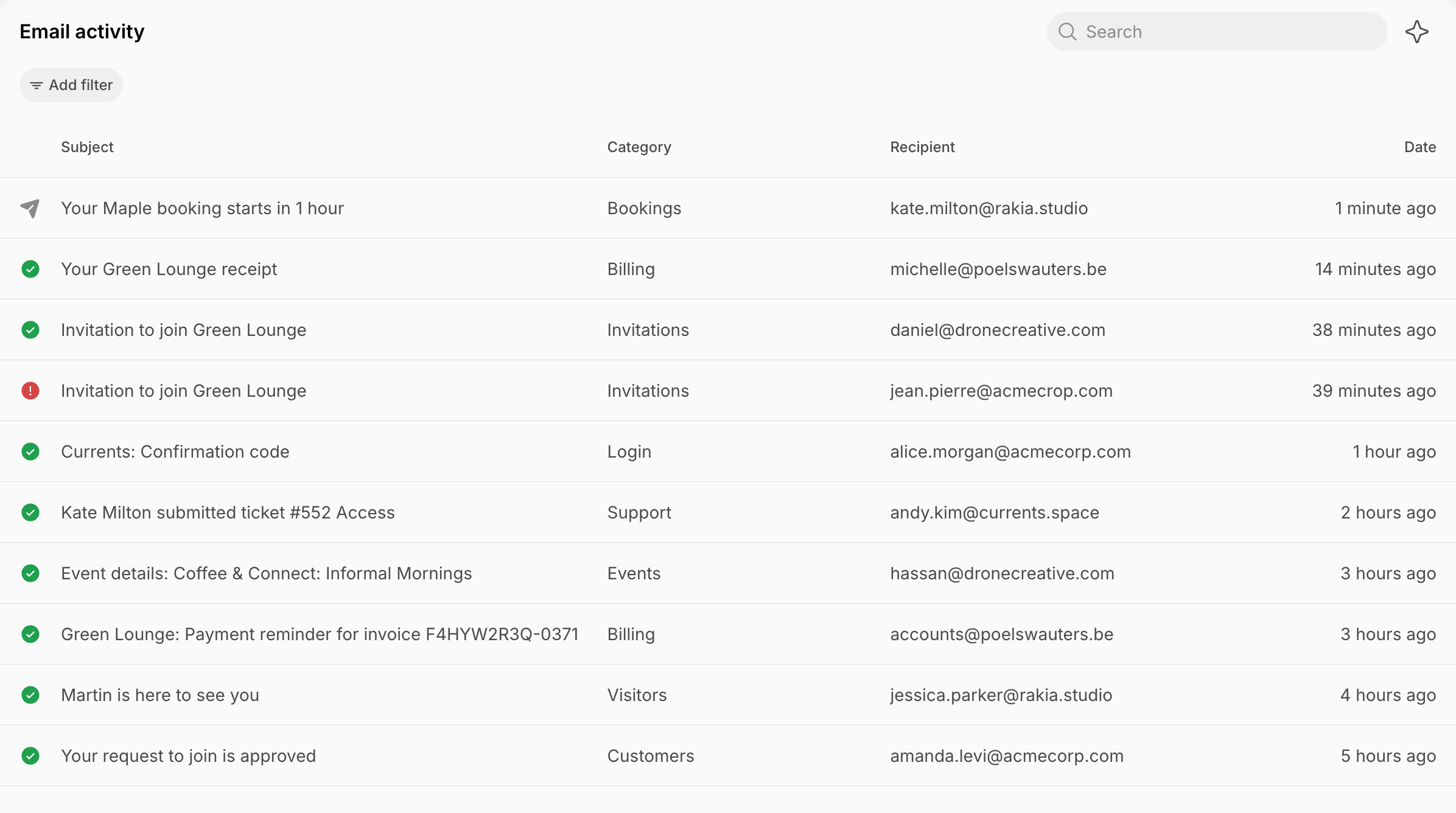
Email activity shows emails sent from October 2, 2026.
Understand email statuses
Hover over the status icon to see its name.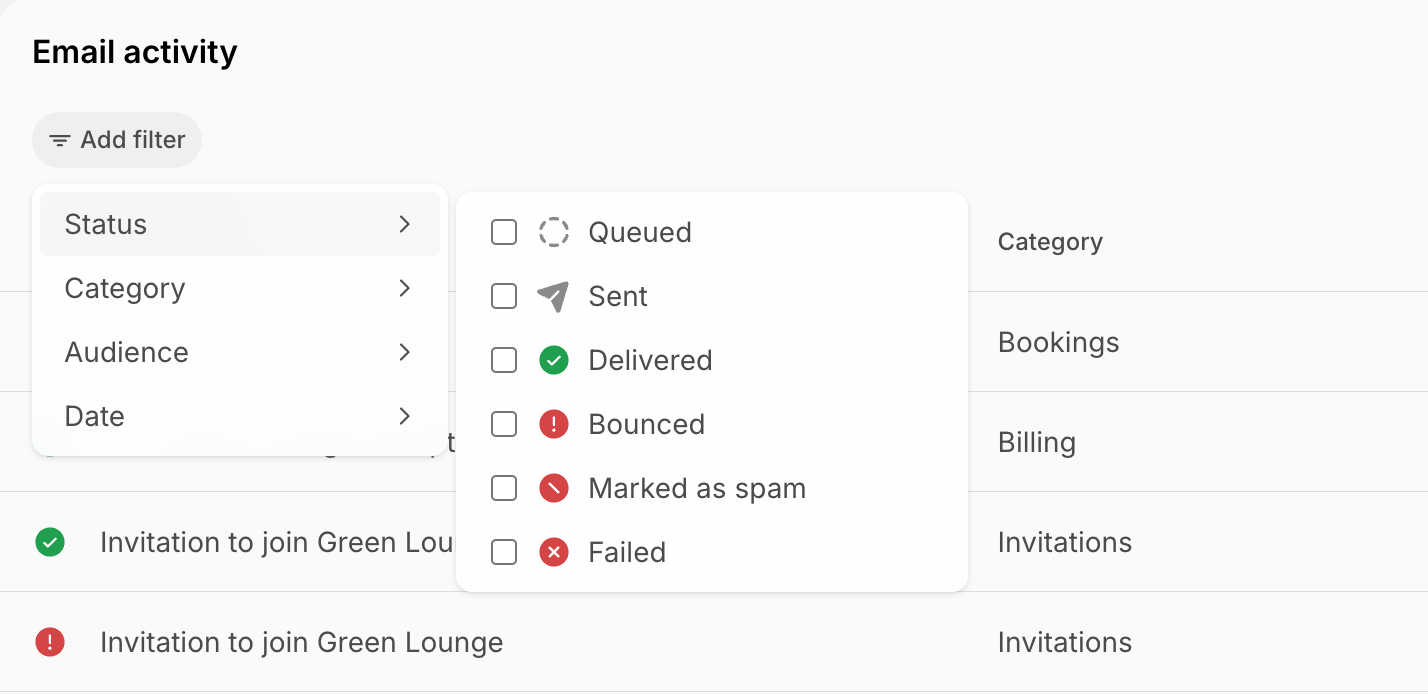
- Queued: the email is waiting to be sent. This usually takes a few seconds.
- Sent: our email service accepted the email and is delivering it.
- Delivered: the recipient’s email server accepted the email. If the customer still can’t find it, ask them to check their spam folder.
- Bounced: the recipient’s email server returned the email, for example because the address doesn’t exist or the mailbox is full.
- Marked as spam: the recipient marked the email as spam.
- Failed: the email was never sent, for example because the address bounced several times in the last 24 hours.
Troubleshoot email delivery issues
If a customer can’t find an email, first find it and check its status. Then follow the steps for that email:Invitations to join
Invitations to join
If a member cannot find the email invitation, go to Spacebring > Customers > select the user > inspect the Invitation section.If the email wasn’t delivered successfully, you will see a “The invitation to…couldn’t be delivered…” error message. If you do not see an error message, it means that the email was successfully delivered, and the issue is on the user’s side of the email inbox.
If you see an error, follow these steps:
- Make sure the invitee’s email address is correct. If you made a typo, remove the user using the Remove button and reinvite with the correct email.
- If the email address is correct, the user’s email service provider rejects Spacebring emails. Sometimes, corporate email inboxes have specific policies to restrict emails from new senders. Ask your member to contact their IT team if their email system is flagging Spacebring emails. They may want to whitelist hello@transactional.spacebring.com or add it to their contacts: Gmail, Outlook, Yahoo.
- You can also additionally configure the custom MAIL FROM address for your account. After this, the emails will be sent from your custom email address. In some cases, this may help resolve delivery issues.
If you do not see an error, try these tips:
- Ask the user to check spam folders and other email filters, just in case emails are being sent there due to the email service provider filters.
- Ask the user to allow emails Spacebring (hello@transactional.spacebring.com) as described in point 2 above.
- Invite the user using their alternative secondary email address, such as @gmail.com or @hotmail.com.
Invoices
Invoices
If a member cannot find the invoice sent to the email, try the following:
- Ask the user to check if they are looking for an invoice in the correct inbox. Users can always check under what email they have a registered account in the app on the Account page.
- Double-check if the invoice was sent. Send an invoice
- For company invoices, ensure that the company manager is selected and has a valid email address. Select company managers
Login codes
Login codes
If a user is not receiving the OTP code to log in, ask them to do the following:
- Check the Promotions or Spam folders and any other email filters as the emails may be getting redirected there by mistake.
- Whitelist hello@transactional.spacebring.com or add it to their contacts: Gmail, Outlook, Yahoo.
- If the user has already logged in on another device, ask them to check the login code sent as a push notification to that device as well.
FAQs
What should I do if troubleshooting steps didn't help and my customer still didn't receive an email?
What should I do if troubleshooting steps didn't help and my customer still didn't receive an email?
If the issue persists after completing all troubleshooting steps, contact our support team. Share the actions you’ve already taken, and specify the user’s email address.