

- When customers book, buy, or pay an invoice in the member portal or mobile app, they pay with a new payment method or with one they saved earlier.
- When you make a booking or a purchase for a customer at the front desk, the customer can scan a QR code with their phone and pay on the gateway’s payment page.
Pay with a new payment method
- When making a booking or purchase, customers choose New payment method under Payment.
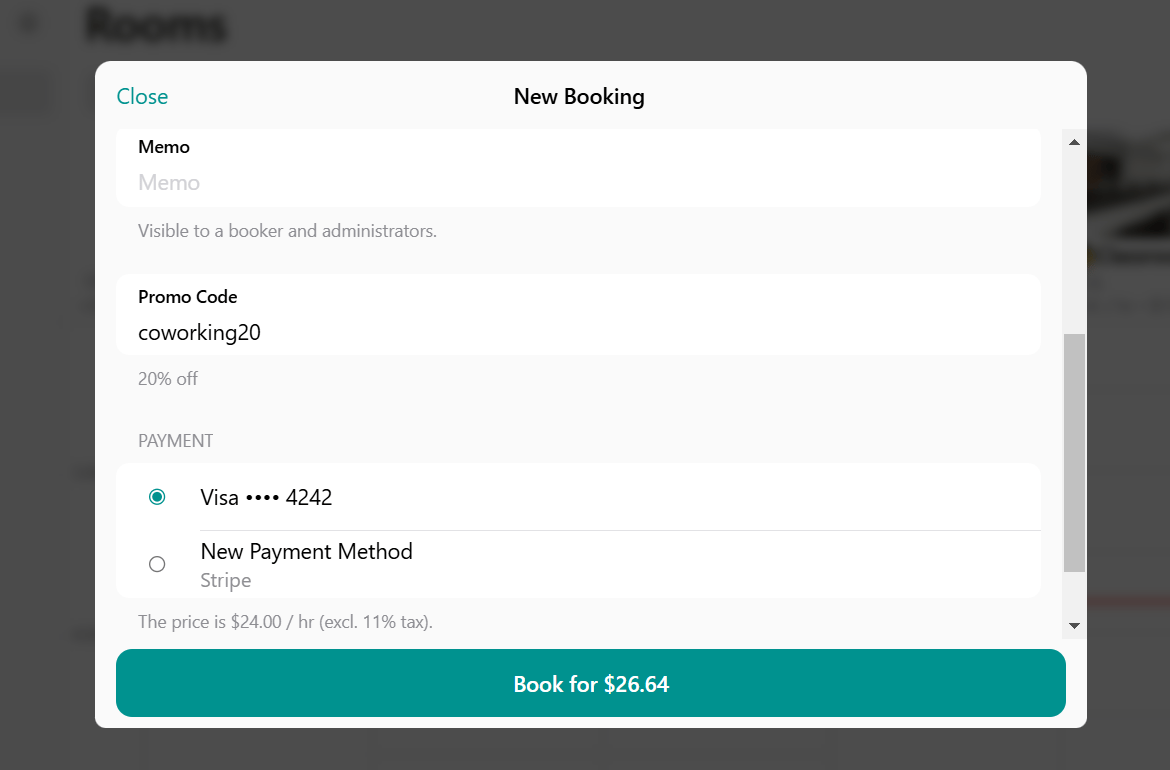
- They’re redirected to the gateway’s payment page, which offers all the payment methods your gateway supports, and complete the payment there.
- Once the payment succeeds, they see a confirmation and receive an email with the receipt and the invoice.
- Customers find the payment under Membership > Billing > Transactions, and administrators on the Transactions page.
Pay with a saved payment method
If you have a Stripe, WayForPay, Tap, plata by mono, HyperPay, PayTabs, Mollie, or PayPal payment gateway connected, customers can have their payment methods saved for quick and automatic payments. A payment method is saved automatically once the customer pays with it, and the customer or an administrator can also add it manually. With PayPal, a card can only be added manually.- With a saved card, customers can pay for bookings, event tickets, shop orders, packages, subscription purchases, invoices, and one-off payments.
- With a saved bank account, customers can pay only for invoices, subscription purchases, and one-off payments.
Paying with a bank account is possible only with a Stripe payment gateway with bank debits, or a Mollie payment gateway, where paying with iDEAL saves the bank account.
Add a payment method
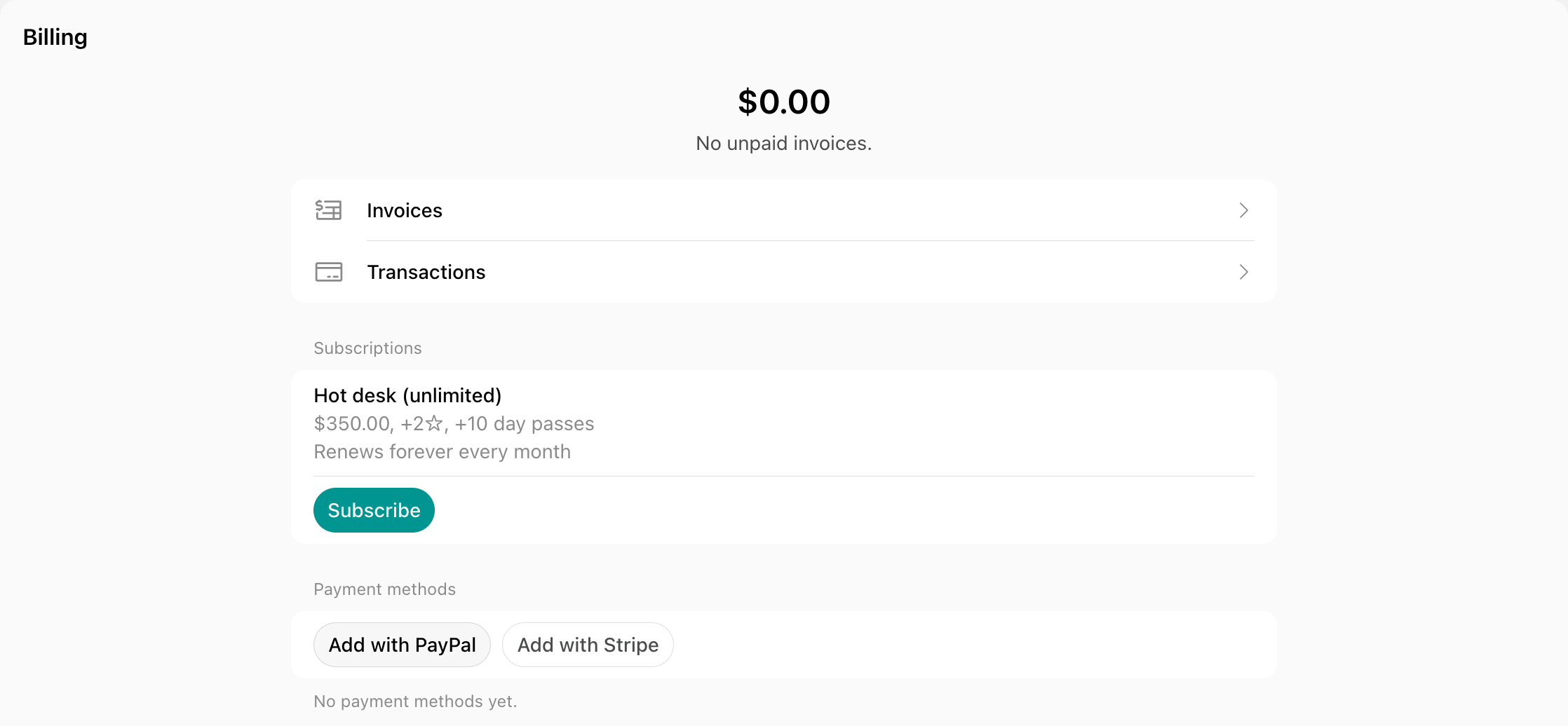
Customers can add their payment method as follows:- Go to Membership > Billing.
- Individual members go to the Personal section on Membership.
- Company managers go to the section with their company name to add a company payment method, or to the Personal section to add their own.
- Under the Payment methods section, press Add and input their details.
- When the location has more than one payment gateway connected, each button names its gateway, such as Add with Stripe.
- Go to Customers > open the member or company profile, depending on who the payment method is for.
- In the Payment methods section, click Add.
- When the location has more than one payment gateway connected, each button names its gateway, such as Add with Stripe.

- Add a payment method > Save.
Set a default payment method
The default payment method is used for automatic invoice charges by subscription. The customer’s payment method becomes the default one once they pay at least one invoice with it, but it can also be set as default manually.- Customers go to Membership > Billing, click (…) next to the payment method, and press Set as default.
- Administrators go to Customers, open the customer’s profile, click (…) next to the payment method, and press Set as default.
Delete a payment method
- Customers go to Membership > Billing, tap (…) next to the payment method, and press Delete.
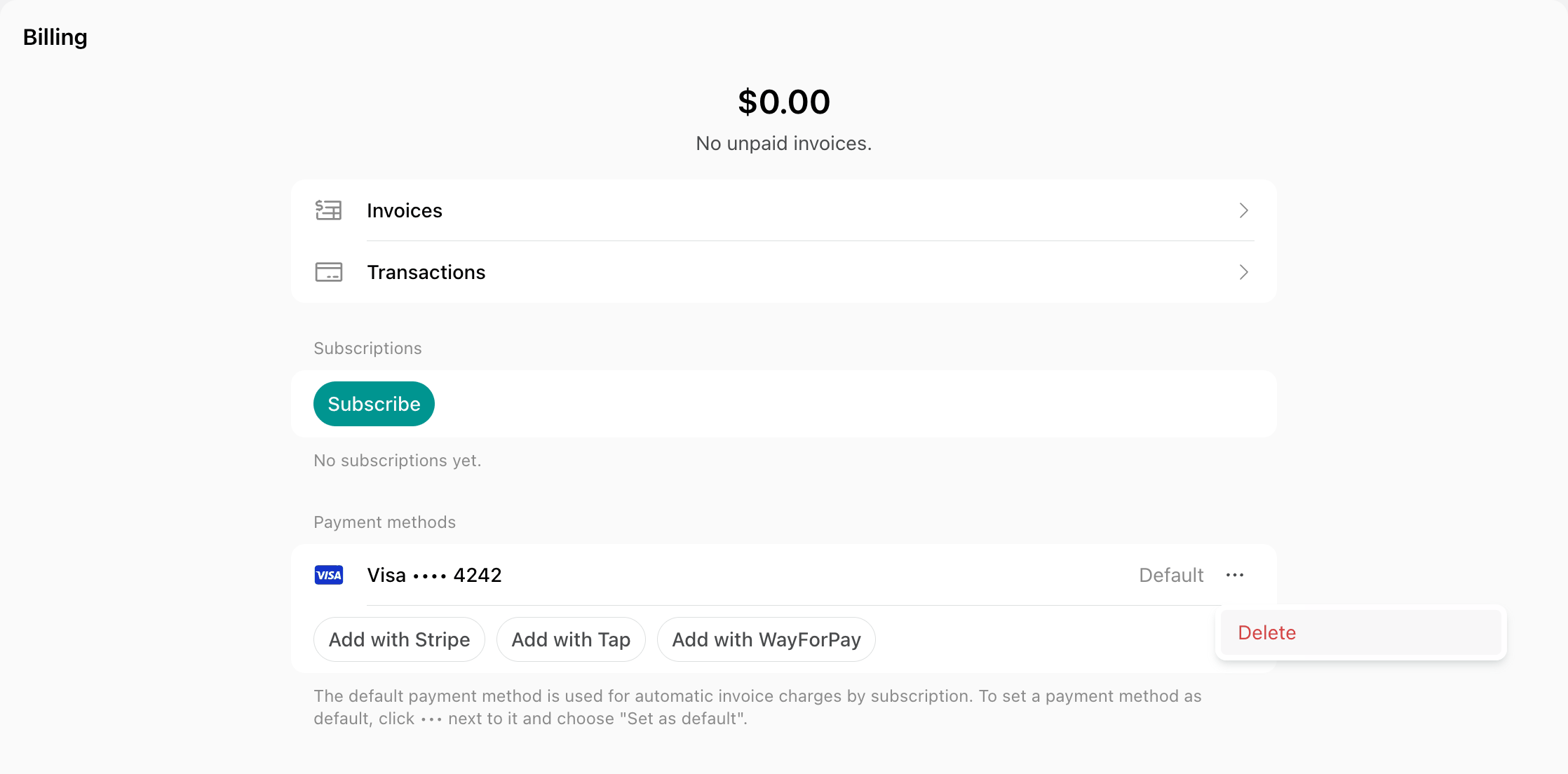
- Administrators go to Customers, open the customer’s profile, click (…) next to the payment method, and press Delete.

Take a payment at the front desk with a QR code
You can make a booking or a purchase for a customer in the admin mobile app or the admin web portal and let them scan a QR code on your screen to open the gateway’s payment page and pay.- Start the purchase for the customer:
- For a booking, open the resource and book it for the customer.
- For an event ticket, open the event, and under Attendees, press Add.
- For a shop order, press Create order on the Orders page.
- For a one-off payment, open the customer’s profile on the Customers page, press the menu (…) top right > Create payment, and enter the payment details.
- Under Payment, select QR code, and create the booking, ticket, order, or payment.
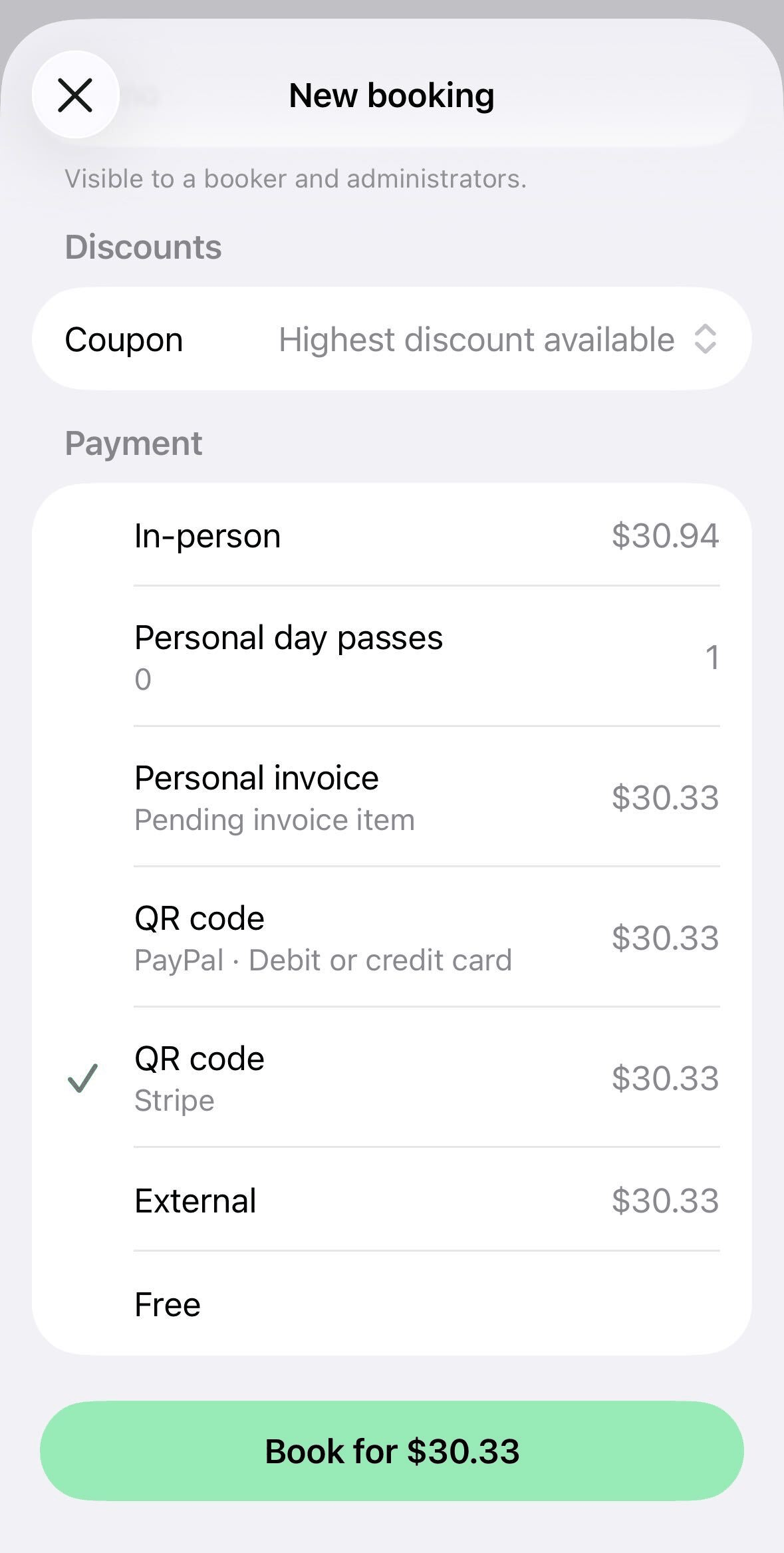
- Show the QR code on your screen to the customer. They scan it with their phone’s camera and pay on the gateway’s payment page that opens.
- To send the payment page to a customer who isn’t at the desk, press Copy link and share the link with them.
- The customer has 15 minutes to pay. If they don’t, the payment is canceled together with its booking, ticket, or order. To show the QR code again before then, open the booking, ticket, or order, and under Payment, press Show QR code.
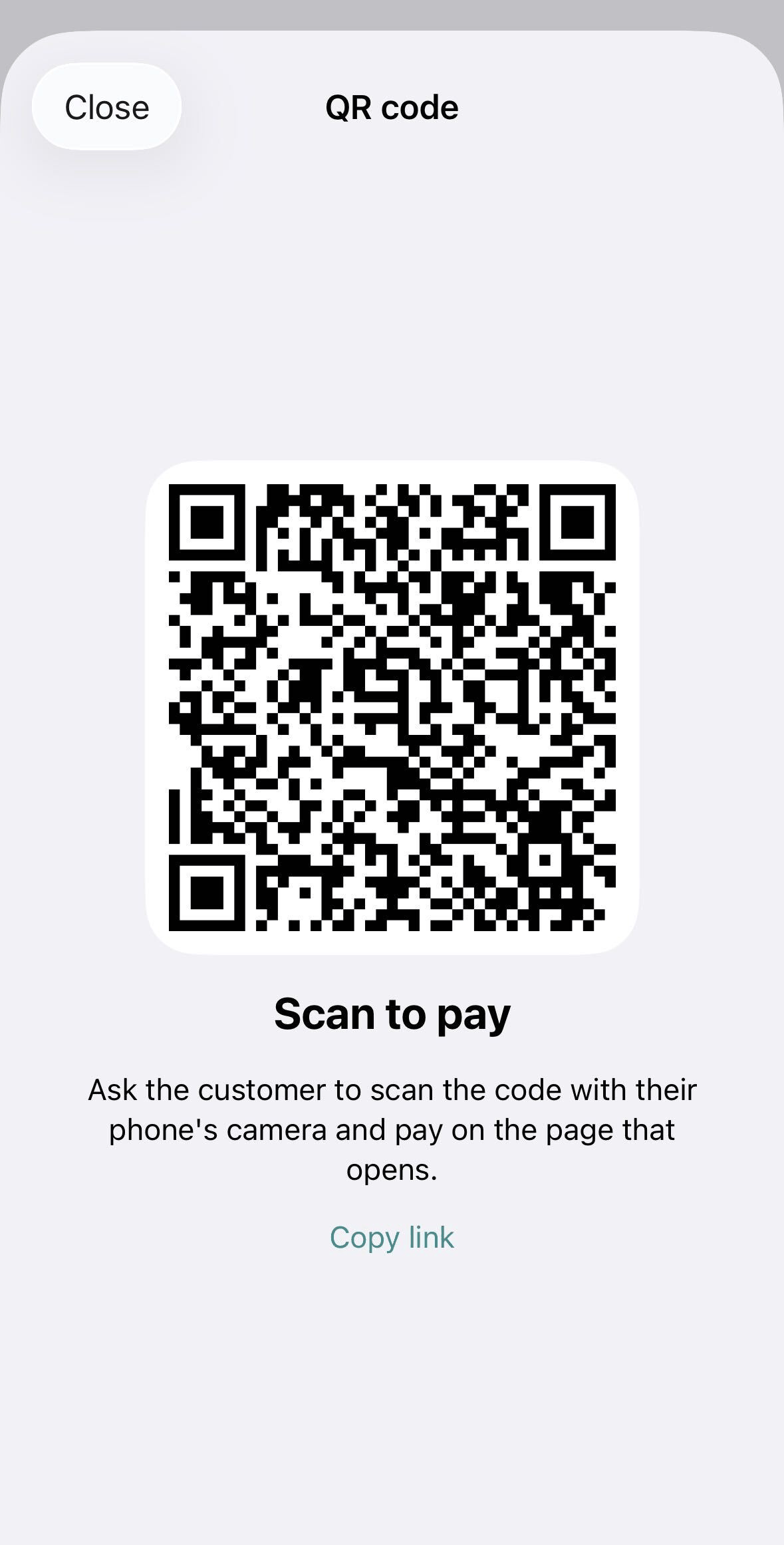
- Once the payment succeeds, the QR code changes to Payment succeeded, and the customer receives an email with the receipt and the invoice.
The payment method the customer pays with this way isn’t saved to their account, so it can’t be used for later or automatic payments.
FAQs
What happens to saved payment methods when I disconnect or change the payment gateway?
What happens to saved payment methods when I disconnect or change the payment gateway?
Saved payment methods stay tied to the payment gateway account they were saved in:
- After you disconnect the payment gateway, customers can’t pay with their saved payment methods.
- If you reconnect the same account, the saved payment methods come back.
- If you connect a different account or another payment gateway, customers need to add their payment details again.