

- Restrict admin access to certain modules
- Assign different responsibilities across your team
- Prevent admins from viewing or editing sensitive information
Customize permissions
You set permissions when you invite an administrator. To change them later:- Click the network name top left > Invite and manage administrators.
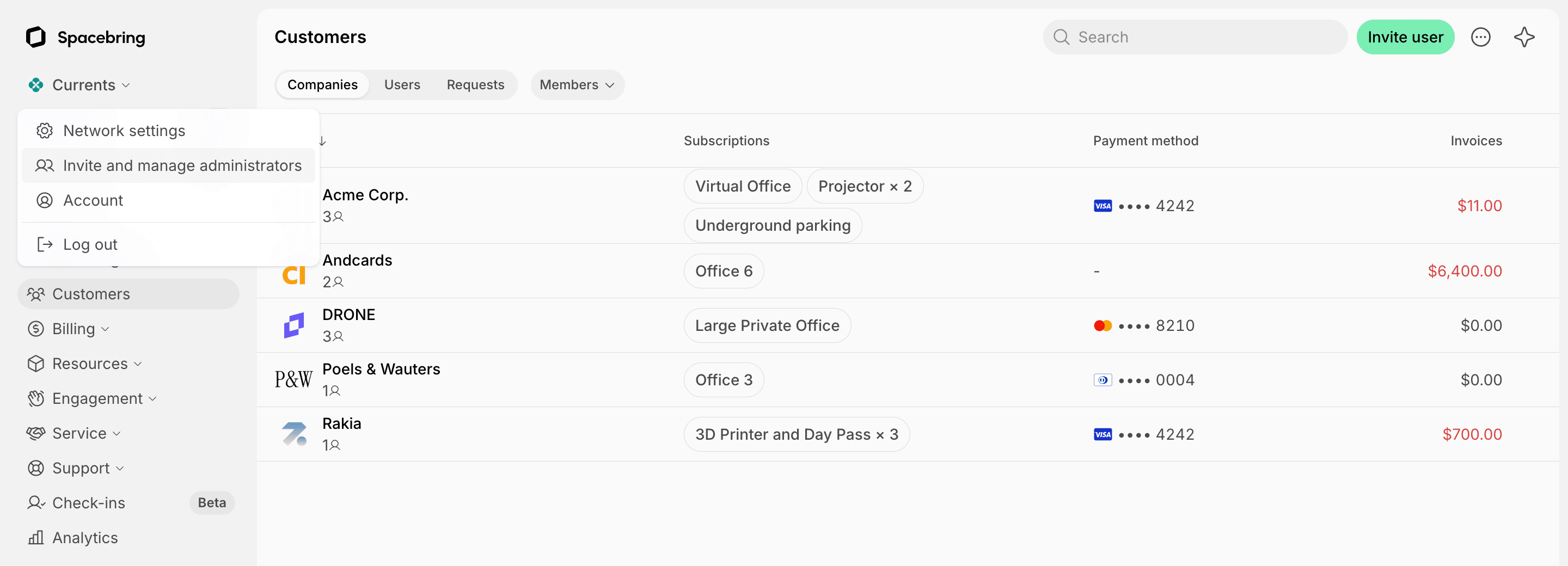
- Press (…) next to the administrator > Edit.
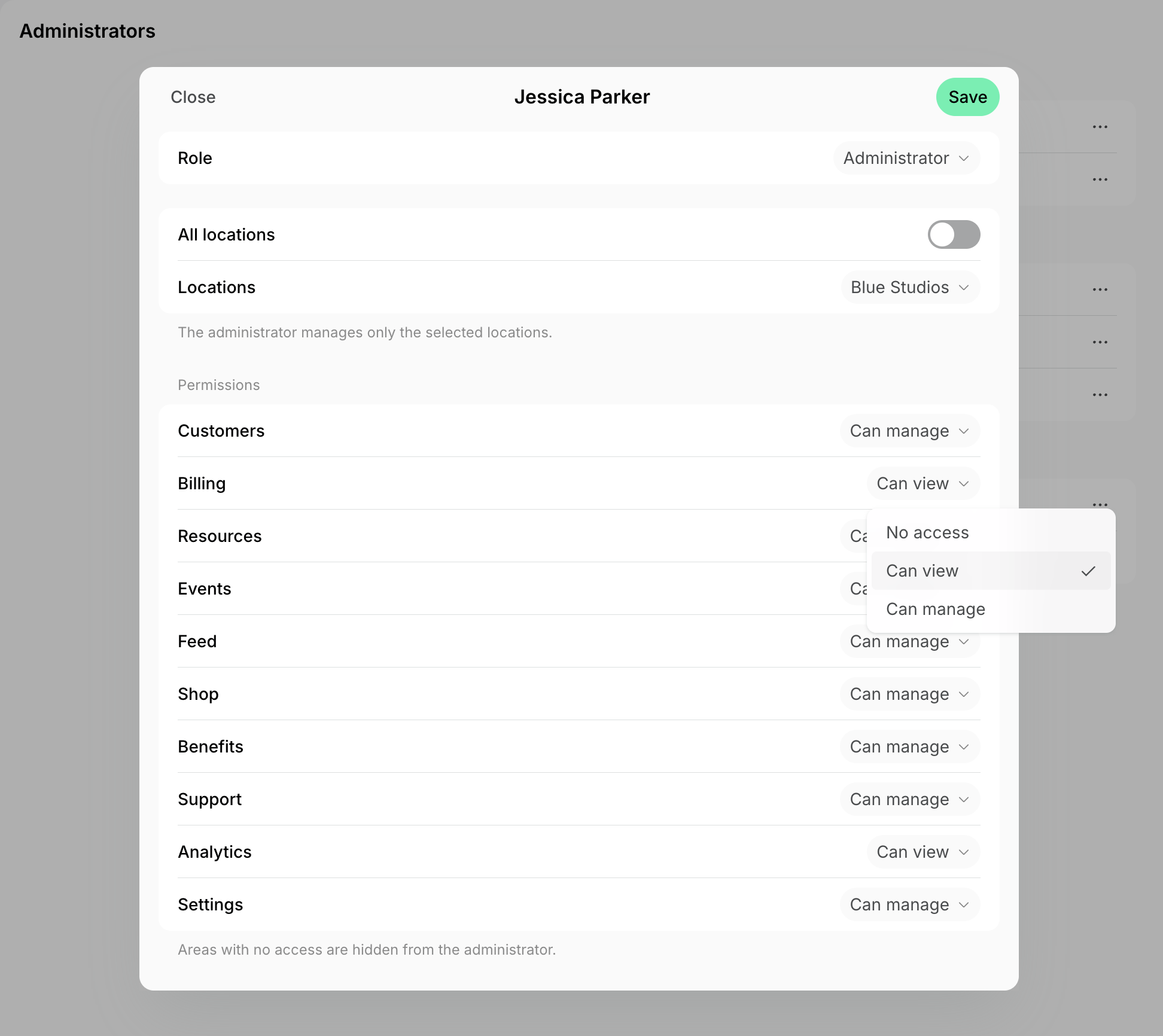
- Choose No access, Can view, or Can manage for each area, and press Save.
Understand permissions
Each area has a permission level: No access hides its pages from the administrator, Can view shows them without letting the administrator change anything, and Can manage lets them create and edit. Analytics has only No access and Can view, and Settings has only No access and Can manage.Key considerations
- Each administrator has one set of permissions, which applies to every location they manage.
- Owners and super administrators always have every permission in every location. If an owner’s owner rights are removed, they stay an administrator with every permission in every location until you edit their access.
- Administrators can turn on notifications on the Account > Notifications page, but they only receive those for the modules they have permissions for. For example, invoice payment notifications need the Customers permission, and booking notifications need Resources.
- Administrators who had access before Check-ins and Visitors became separate areas start with the Can manage permission for both.
Best practices
Administrators can have different roles in your space, and based on their responsibilities, they need access to specific pages only. We recommend you give the following permissions to such teammates:- Account manager: the Can manage permission in every area to invite members and create companies, manage subscriptions, and edit any content in the location if necessary.
- Event manager: the Can manage permission for Feed and Events, and No access for the areas they don’t work with. The administrator will be able only to manage feed posts, create new events, and handle new event registrations.
- Accountant: the Can view permission for Analytics and Can manage for Billing. The administrator will be able to access the Analytics page and export payments and invoices from the Transactions and Invoices pages.
FAQs
Can I hide an area from an administrator?
Can I hide an area from an administrator?
Yes. Set the area’s permission to No access. Its pages disappear from the administrator’s menu, and opening one by its link shows that they have no permission.
Can I hide prices from an administrator?
Can I hide prices from an administrator?
Set the Billing and Resources permissions to No access to hide their pages, including the prices of memberships, subscriptions, invoices, resources, and bookings on them. With the Can view permission, an administrator sees those prices but can’t change them.